
Android AI Image Context: Reanalyze the Same Screenshot or Photo
Learn how an Android AI assistant should preserve one image across follow-up questions, reanalyze the original pixels, recover expired attachments, and verify resulting actions.
- Continuous Android AI image context requires a stable reference to the selected screenshot or photo, not just a remembered text summary.
- The assistant should preserve the image's source, dimensions, format, access lifetime, and task association so follow-up questions use the intended asset.
- A new question may require reanalyzing the original pixels at a different crop or resolution because earlier findings can omit crucial evidence.
- Every image-derived action should preview consequential values, request applicable confirmation, verify the result, and recover explicitly from expired or mismatched references.
What Continuous Image Context Means
Android AI image context becomes useful when one screenshot or photo can support an entire task rather than a single answer. Imagine attaching a receipt and asking, "Which store is this from?" A moment later, you ask for the total, then whether a service charge was included, and finally request a reminder to submit the expense. Each question refers to the same visual source, but each requires different evidence.
The assistant needs to keep three things distinct. The image asset is the original set of pixels. Its reference identifies where the current task can access those pixels. Prior findings are text produced during earlier analysis, such as the merchant name or detected total. Remembering the findings is useful, but it is not equivalent to preserving the image itself.
An early answer may omit details that seemed irrelevant at the time. The first receipt question might produce only the merchant name, leaving out the date, tax, line items, currency, and payment method. When the user later asks about the total, the assistant should reopen the image and examine the relevant region instead of treating the earlier summary as complete visual memory.
- The user selects or captures one image.
- The assistant binds that asset to the current task and answers the first grounded question.
- A follow-up asks for a different detail.
- The assistant decides whether existing findings contain enough evidence.
- When needed, it reopens the original pixels, analyzes the relevant area, and compares the result with earlier findings.
- Any downstream phone action uses reviewed values and a visible result check.
This is continuous image context in practical terms: the assistant knows which asset is active, can return to its pixels, records what has already been established, and treats new questions as new evidence requests. It is a task-specific workflow rather than continuous camera observation.
Choose the Right Image Source
A reliable workflow starts by acquiring the right image. Android offers three common routes: selecting existing media, taking a new photo, or capturing the current screen. Each route produces different provenance, resolution, orientation, and access conditions.
| Source | Best for | What to check |
|---|---|---|
| Photo picker | Receipts, documents, product photos, and saved screenshots | Correct item, crop, orientation, resolution, and how long access is needed |
| Camera capture | A physical object, label, error light, printed page, or new receipt | Whether the result is a thumbnail or saved full-resolution image, plus focus and glare |
| Screen capture | An app error, confirmation page, message, chart, or current visual state | User consent, selected display or app window, sensitive regions, and capture timing |
The Android photo picker lets users grant access to selected images or videos instead of exposing the entire media library. It returns a URI for each chosen item and supports single or multiple selection. Longer tasks may need persisted access where Android and the receiving app support it, but the workflow should still preserve the exact selected item rather than search the library again later.
For a new photo, Android can delegate basic capture to a camera app through the flow described in the camera intents guide. The returned image data may be a small preview, while a configured saved result can provide the full image for later analysis. Fine text, serial numbers, receipt totals, and object damage often require the saved full-resolution source.
Screen capture follows a separate consent path. Android's MediaProjection documentation explains that the user grants consent for a capture session through a one-time token. Depending on the supported flow, capture may cover the display or a selected app window. Before analyzing it, confirm that the screenshot shows the intended app state and excludes unrelated notifications, account details, or private conversations.
Record the source and capture time with the task. A screenshot taken before an error changed may no longer represent the current screen, while two nearly identical receipt photos may contain different totals. Readers who need a dedicated current-screen setup can use Android Floating AI Assistant: Use Current-Screen Context Safely.
Keep One Stable Image Reference
Once selected, the image needs a stable identity for the life of the task. A filename alone is weak evidence because Android cameras and screenshot tools can produce similar names, and temporary exports may be replaced. A useful reference binds the accessible asset to the conversation or workflow that selected it.
The minimum record should preserve the source type, task association, MIME type, pixel width and height, orientation, capture or selection time, and the current local or remote reference. Dimensions are operationally important. They determine how a crop maps to the original image and whether a coordinate such as "the button near the lower-right corner" still points to the intended area after resizing or rotation.
- Asset identity: Keep a durable task-specific identifier for the selected image.
- Provenance: Record whether it came from the picker, camera, screenshot flow, or another explicit attachment.
- Dimensions and orientation: Preserve the original geometry before analysis or coordinate-based follow-up.
- Media format: Retain the MIME type so the image is decoded correctly.
- Accessible reference: Track the local URI or authorized remote reference currently used by the task.
- Access lifetime: Know whether the reference is temporary, persisted for longer work, renewable, or ready for reselection.
- Analysis history: Store previous findings separately from the image so later questions can reuse or challenge them.
URI access can be temporary. A picker grant may last long enough for immediate work but require persisted permission for a longer-running task. Remote access can also expire. The correct recovery is to renew authorized access to the same asset or ask the user to reselect it. Substituting the newest screenshot or a visually similar file can silently move the task onto the wrong evidence.
In FoneClaw, we preserve image dimensions and usable local or remote references for supported image tasks. When continued work requires renewed access, the attachment can be prepared again while remaining associated with the active task. This lets follow-up analysis return to the selected asset instead of relying exclusively on an earlier text answer.
Reanalyze the Pixels When the Question Changes
Every follow-up question should begin with an evidence check: can the previous findings answer this request, or does the assistant need the pixels again? Reuse is appropriate when the fact was already extracted and remains relevant. Reanalysis is appropriate when the question targets another region, asks for finer detail, challenges an earlier result, or depends on visual condition rather than text.
A receipt illustrates detail recovery. The first pass may identify the merchant and total from a compressed overview. A later question about tax or a handwritten tip requires a closer crop and enough resolution to distinguish small characters. Image token limits and compression can reduce fine detail, so the assistant should prepare the relevant region again rather than describe compression as lossless.
An error screenshot illustrates changed evidence. The initial question may ask which app failed, while the next asks for the exact error code. The assistant should reopen the screenshot, focus on the dialog, and transcribe the code with surrounding context. If the UI also exposes structured text, combining that information with the screenshot may be more dependable than pixels alone. Our guide to Android AI Agent Screen Understanding: UI Tree, Screenshot, or Both? explains when each source is useful.
A product photo illustrates condition analysis. Identifying the object does not establish whether its seal is broken, a connector is bent, or a warning light is active. The follow-up needs a targeted examination of the relevant physical feature, possibly at a higher resolution or with a new photo when focus and lighting are inadequate.
The operational loop is straightforward:
- State the new question and identify the evidence it requires.
- Check whether earlier findings contain that evidence and still refer to the active image.
- Reopen the original pixels when the requested detail was omitted, compressed, cropped, or disputed.
- Use an appropriate crop and resolution within the available multimodal budget.
- Compare the new observation with previous findings and the user's description.
- Pause downstream action when the evidence conflicts, then request a clearer crop, a new capture, or user review.
The user needs the resulting evidence, not private model deliberation. Show the detected text, relevant crop description, uncertainty, and any conflict that affects the task. A recognized receipt total or error code should remain reviewable before it becomes an action input.
Verify Actions and Recover from Stale Context
Image understanding becomes consequential when extracted information moves into another phone action. A receipt total might become an expense note, an address might open navigation, an event poster might create a calendar entry, and an error screenshot might produce a support message. The assistant should preview the extracted values before committing them.
Review the fields that carry practical consequences: recipient, amount, currency, date, time, address, account, message text, and destination app. Recognition confidence can help decide when more review is needed, but it is not a guarantee. The visible source and the user's confirmation remain the decisive checks.
| Failure signal | Likely problem | Recovery |
|---|---|---|
| The attachment cannot be opened | Temporary URI or authorized reference expired | Renew access to the same asset or ask the user to reselect it |
| The answer describes the wrong screen | Image reference was swapped or task binding was lost | Show the active image identity and let the user select the intended source |
| Text differs between passes | Small characters, crop, glare, rotation, or compression affected recognition | Reanalyze the original at a better crop or request a clearer capture |
| Coordinates point to the wrong area | Dimensions or orientation changed during processing | Restore original geometry and remap the target before any action |
| The phone action appears complete but no record exists | The app stopped at an intermediate screen or rejected the request | Inspect the resulting screen or record and retry only after confirming state |
Execution and verification are separate steps. Creating a calendar event should end with the event visible in the intended calendar. Saving a note should return the stored content or record. Preparing a message should show the recipient and text before sending. Opening navigation should expose the destination in the selected map app.
When the active image is stale, recovery should remain explicit. Renew the existing attachment when possible. If the source is no longer available, ask for reselection and show which task will receive the new image. This prevents a recent screenshot from quietly replacing the receipt, document, or error screen the user was discussing.
Use Narrow Access and Deliberate Retention
Continuous image context works best with deliberate scope. Select only the media required for the task, capture only the relevant screen, and retain access only as long as the workflow needs it. Android's guidance on minimizing permission requests recommends narrow routes such as the photo picker, which provides temporary read access to media chosen by the user.
Before the task: Choose the smallest useful source. Crop unrelated account details, faces, notifications, location information, or payment data when those regions are irrelevant. For camera capture, check the background and image quality. For screen capture, confirm the selected display or app window before granting session consent.
During the task: Keep the active image visible or identifiable so follow-up questions remain grounded in the intended asset. Review any crop sent for reanalysis and confirm extracted sensitive values before they enter another app. When a task changes from reading to messaging, booking, navigation, or record creation, pause at the point where the new action begins.
After the task: Decide whether the attachment still needs to remain available. Temporary URI access can end naturally, while persisted access should match a genuine longer-running need. Remove retained task images when the work is complete, and reselect the source later if a new task requires it.
MediaProjection consent belongs to the capture session the user approved. A new capture session should present its own consent flow. This gives users a clear opportunity to reassess what is visible before another screenshot is created. Broader guidance for contextual assistants is available in Proactive AI Assistant on Phone: Context, Triggers, and Controls.
A Reliable FoneClaw Image-to-Action Workflow
We designed FoneClaw's image workflow around continuity between visual understanding and supported Android action. The model configured inside FoneClaw handles multimodal interpretation and planning. FoneClaw keeps the selected or captured image associated with the task, prepares it for analysis, routes supported phone tools, shows progress, requests applicable confirmation, and verifies the result.
A receipt-to-reminder test provides a low-risk way to evaluate the complete loop:
- Attach one receipt. Select it through the picker or capture a clear photo. Confirm that the full receipt is visible, correctly oriented, and associated with the active conversation.
- Ask the first grounded question. Request the merchant name and purchase date. Review the answer against the image.
- Change the evidence request. Ask for the final total and whether tax or a service charge appears. FoneClaw can prepare the same attachment for renewed analysis, using preserved dimensions and a suitable image budget.
- Resolve discrepancies. If the total conflicts with the line items or the currency is unclear, stop and request a closer crop or a clearer image before creating anything.
- Preview a supported action. Ask FoneClaw to prepare a note or reminder containing the reviewed merchant, date, total, and reimbursement deadline.
- Confirm and verify. Approve the final fields, let the supported Android tool create the item, and inspect the saved note or reminder afterward.
Multimodal preparation can involve resizing, compression, crop selection, token budgeting, and renewed attachment access. Those steps should preserve the task's asset identity and geometry while making the requested evidence available to the configured model. When access expires or an image cannot be prepared, FoneClaw surfaces recovery instead of selecting another asset silently.
The same pattern applies to an error screenshot. Attach the screen, identify the app and visible state, ask a second question for the exact error text, then prepare a support note or reminder. Android version, granted permissions, manufacturer behavior, app state, region, model capability, and task scope can affect the available path, so begin with a reversible action and inspect every result.
Readers can review the supported image, context, and Android action capabilities on the FoneClaw Features page. The FoneClaw Download page provides the current installation route for trying a selected photo or screenshot with a low-risk note or reminder workflow.
Identify a Landmark, Then Verify the Travel Context
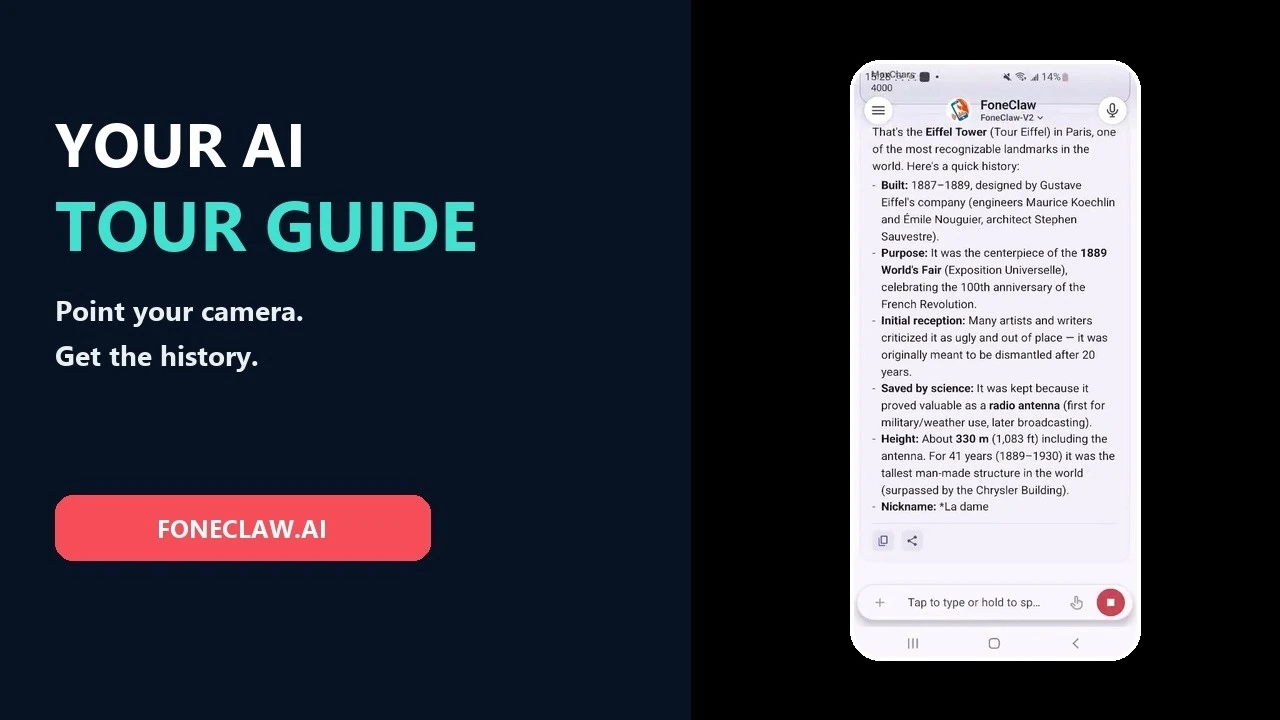
Landmark recognition is useful only when the image and the follow-up questions stay connected. Ask what the place may be, request the evidence or uncertainty, and then verify the city, opening information and route before turning the result into a plan. Similar buildings and cropped signs can produce plausible but wrong answers.