
Windows AI Agent vs Phone Agent: PC Diagnostics or Android Actions?
Compare Windows Copilot PC Insights with Android phone agents, and learn when desktop diagnostics, mobile identity, notifications, calls, and FoneClaw workflows fit best.
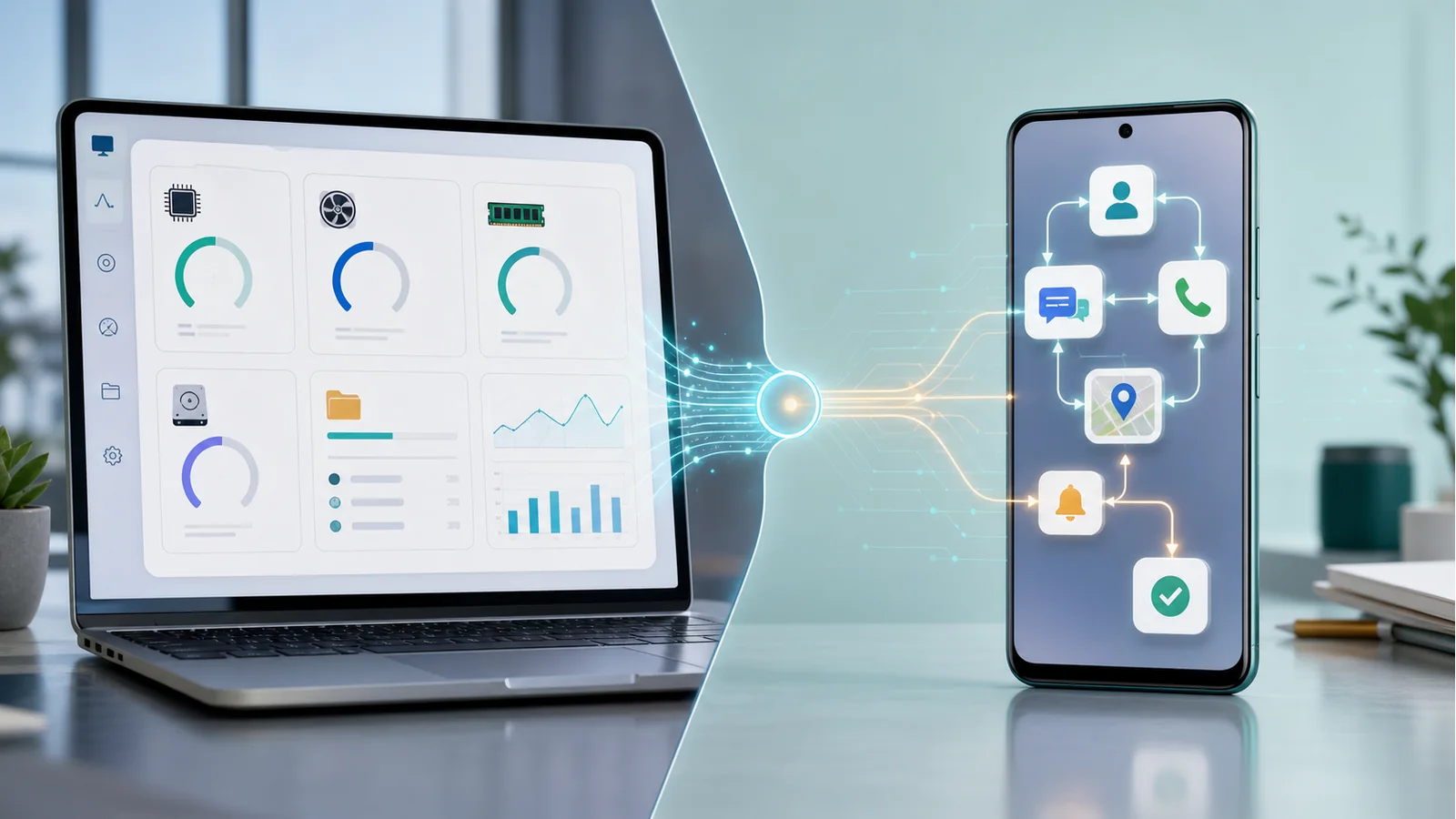
- A Windows AI agent is strongest when the task is about PC state, files, settings, windows, connected devices, office work, and diagnostics.
- A phone agent is strongest when the task depends on mobile identity, contacts, calls, messages, reminders, maps, notifications, camera, location, and app-to-app movement.
- Microsoft PC Insights shows the value of conversational PC diagnostics, but its official scope is opt-in, permission-based, experimental, and focused on explaining device state rather than making changes.
- FoneClaw focuses on supported Android phone actions with visible results, permission-aware flows, user confirmation, and practical recovery paths.
Quick Decision: PC Agent or Phone Agent?
Windows AI agent vs phone agent is a task-boundary question. Use a Windows AI agent when the work starts from your PC: system performance, files, folders, settings, connected devices, windows, office documents, or desktop troubleshooting. Use a phone agent when the work starts from mobile life: identity, calls, messages, contacts, notifications, reminders, maps, camera, location, and app actions that happen on Android.
Microsoft’s PC Insights signal is useful because it narrows what a PC agent can do well. The Microsoft Support page for PC Insights describes it as an opt-in experimental Copilot on Windows feature that lets users ask questions about their PC and receive answers based on device state, with permission. That is a strong desktop use case: explain what is happening on the computer without forcing the user to dig through Settings, Task Manager, or folders.
FoneClaw’s product scope is the Android side. Models can provide reasoning, planning, and language understanding. FoneClaw handles supported phone actions with visible results, permission-aware flows, user confirmation, and practical recovery paths. For readers who want the broader Android action model, AI Agent Phone Control: How Android Phone Agents Turn Intent Into Action gives the adjacent FoneClaw foundation without turning this article into a generic phone-control guide.
What Windows Copilot PC Insights Is Built to Do
PC Insights is best understood as conversational PC diagnostics. Microsoft says users can ask questions such as what graphics card they have, whether they have enough space for a large game, or what current CPU usage looks like. With permission, Copilot gathers relevant information and explains it in plain language. It is gradually rolling out and Microsoft describes it as experimental, still evolving, and subject to incomplete or inaccurate answers while the feature improves.
The official workflow is permission-driven. When a user asks a question about the PC or files, Copilot identifies the information needed, asks before accessing system or file data, retrieves only the needed data once approved, and returns a plain-language answer. Microsoft also says users can manage permissions in Copilot settings, choose session-level access, always allow similar requests, or decline access for now.
Tecnoblog’s report on Copilot PC Insights translates that into concrete data categories: CPU, GPU, RAM, storage, system information, connected devices, battery health, antivirus presence, BIOS version, and device status. The same report frames the feature as read-only, focused on interpretation rather than changing settings or ending processes. That makes PC Insights valuable for understanding the desktop, while the action boundary stays clear.
What Belongs on an Android Phone Agent
An Android phone agent has a different center of gravity. The phone is where daily identity and communication live. A phone agent needs to handle contacts, messages, calls, reminders, maps, notifications, app state, camera workflows, location context, and time-sensitive mobile tasks. The user may be walking, commuting, cooking, in a meeting, or checking a notification quickly. The task often needs fewer taps and a confirmable result.
That is why a PC diagnostic agent and a phone agent should not be judged by the same checklist. A Windows agent can tell you whether your PC has enough storage, which USB device is connected, or what your CPU usage looks like. A phone agent may prepare a text, open the right map route, create a reminder from a message, start a supported call workflow, or help triage a notification. Both are AI-assisted; the action surface is different.
Microsoft has broader Copilot ambitions across Windows, Edge, Office, and hardware keys. Digital Trends reported on Copilot adoption in July 2026, noting broad Microsoft distribution and slower adoption compared with the Microsoft 365 seat base. For adjacent Microsoft strategy context, Microsoft AI Super App vs Local AI Agent: Which Route Fits Your Phone? covers the app-strategy side, while this page stays focused on PC tasks versus Android phone actions.
Read-Only Diagnostics vs Confirmable Phone Actions
The clearest difference is read-only explanation versus action completion. PC Insights is designed to answer questions about the device and files. Microsoft says it can help explain what is happening on the PC, while its support page states it does not fix issues, make system changes, run troubleshooting steps automatically, or monitor the device in the background. That is an understandable product choice for an experimental PC feature.
Phone actions are more direct. If a user asks to send a message, call a contact, open navigation, share a location, adjust a setting, or prepare a reply, the phone agent may move closer to a real-world consequence. The action should be visible, permission-aware, and confirmable. The user should know which contact is selected, which message is prepared, which app is open, and what final step is about to happen.
This distinction also explains why Microsoft-themed agent pages should not all collapse into one story. Microsoft Copilot Redesign: What It Means for Phone AI Agents covers interface and product-direction signals. Microsoft Build 2026 AI Agents: What Copilot Means for Phone Automation covers developer and agent-platform signals. Here, the practical decision is narrower: use Windows AI for PC understanding and diagnostics; use a phone agent for supported Android actions that need mobile context and user-visible control.
FoneClaw’s View: Model Reasoning, Android Actions
At FoneClaw, we view model reasoning as the planning part of a phone-agent workflow. A configured model can understand the user’s intent, reason about context, and choose the next supported step. FoneClaw then handles the Android action flow: visible results, permission checks, confirmation for sensitive steps, and a practical recovery path when the requested action is not available in the current phone state.
That product scope is different from PC diagnostics. If a Windows user asks Copilot what is using storage, the answer can be an explanation. If an Android user asks FoneClaw to prepare a message based on a notification, the workflow should show the recipient, the draft, and the final send point. If the user asks for a call, the selected contact should be clear. If the user asks for navigation, the route and app context should be visible.
Microsoft’s Aion and OS-agent discussions point toward richer agent systems over time. Microsoft Aion Copilot OS and the Next Phone AI Agent Layer explores that wider OS direction. FoneClaw keeps today’s Android action standard clear: configurable model reasoning belongs inside the phone agent, and supported Android actions should remain visible, permission-aware, and confirmable. That makes the phone agent useful without blurring the line between explanation and completed mobile work.
Checklist: Windows, Android, or Both?
Use this checklist when deciding whether a task belongs with a Windows AI agent, an Android phone agent, or both.
| Task type | Best starting point | Why |
|---|---|---|
| Check CPU, RAM, GPU, storage, BIOS, battery, antivirus, USB devices | Windows AI agent | The task depends on PC device state and diagnostic explanation. |
| Find or explain a PC file or folder size | Windows AI agent | PC Insights is designed around permission-based PC and file questions. |
| Prepare a message, call, reminder, map route, or notification action | Android phone agent | The task depends on mobile identity, apps, contacts, and confirmation. |
| Summarize a document and send a mobile follow-up | Both | The PC may be best for document context; the phone agent handles the Android action. |
| Understand a desktop issue and decide whether to contact someone | Both | Windows explains the PC state; FoneClaw can prepare the supported phone communication step. |
The best route is not about which AI brand is bigger. It is about where the task lives. If the task is PC state, use the Windows agent route. If the task is mobile identity and daily Android action, use the phone-agent route. If the task crosses devices, let each agent handle its strongest side. FoneClaw’s role is the Android part: supported phone actions, visible results, permission-aware flows, confirmation, and practical workflows that move mobile tasks forward.