
ZeroTap vs FoneClaw for Android MCP Control: Desktop Client or Phone Assistant?
Compare ZeroTap's Android MCP server with FoneClaw's phone-first tasks. Check setup, access controls, a device-status task, and visible results.
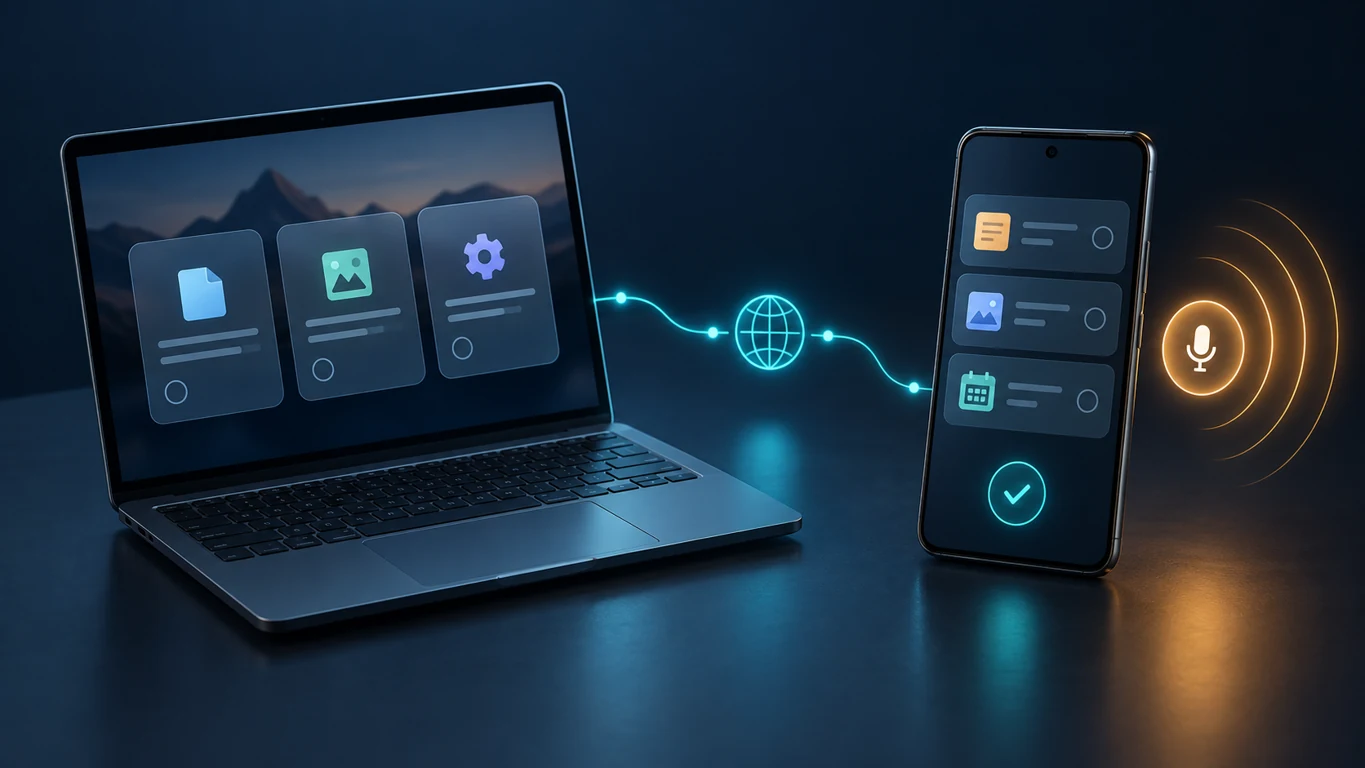
- Choose ZeroTap when an external AI client needs to reach an Android phone through its MCP server; choose FoneClaw when you want to start a supported task on the phone.
- ZeroTap's server route needs a running phone service, reachable local network, client configuration, and a valid Bearer token. Its main app and optional control companion are separate installs.
- A device-status request is a low-risk way to check either route: inspect the returned fields and confirm the relevant state on the phone before trying a change.
- FoneClaw provides governed phone-side tools, not a verified public MCP server or native Claude Desktop bridge. Check your FoneClaw edition and available tools before planning a task.
Start From the Desktop or the Phone
The practical difference in ZeroTap vs FoneClaw for Android MCP control is where you begin. ZeroTap offers an Android-hosted MCP server so an external AI client can request work on the phone. FoneClaw starts with a voice or model-assisted request on the Android phone and uses its own governed tools for supported actions.
An MCP endpoint is a service that exposes named tools to a configured client. In ZeroTap's case, the phone hosts that service and the desktop-side client sends a request to it. With FoneClaw, you address the phone assistant directly; the configured model helps interpret the request, while the supported Android tool performs the phone-side step. A reply from either AI route should be checked against the phone's actual state.
| Decision | ZeroTap | FoneClaw |
|---|---|---|
| Where the request starts | A configured external MCP client, such as a desktop coding or assistant tool. | The Android phone's voice or assistant interface. |
| How it reaches the phone | The client's connection to the running ZeroTap server on the phone. | FoneClaw's supported phone tools and configured model. |
| What to verify | Connection, tool response, and visible device state. | Available tool, permission or approval state, and visible result. |
Neither starting point is an accuracy or speed verdict. The useful question is whether your work already lives in an external client or begins with you speaking to the phone.
What Each Route Needs
ZeroTap's Android MCP server documentation describes a service hosted on the phone at local-network port 8485, using Streamable HTTP, JSON-RPC 2.0, and a Bearer token. Its advertised tools include task execution, screen state, and device status. The client may need a bridge or other configuration to connect, depending on that client's MCP support. Before requesting a phone action, confirm the server is running, the client can reach the phone on the local network, and the phone's screen, unlock state, and accessibility access suit the task.
Do not confuse that server route with every ZeroTap installation. The ZeroTap app and companion guidance distinguishes its main Google Play app, which offers chat and a floating widget, from an optional Android-control companion APK. The companion needs a compatible main app and Android 8 or newer; it comes from the project's linked GitHub download and is updated manually. Check which component the action requires instead of assuming the Play app and companion are one install that updates together.
With FoneClaw, start by checking the edition and the tool available for your intended action. The Full APK and Google Play Lite do not automatically have identical phone-control capabilities. A compatible configured model handles reasoning; Android permissions, the tool's policy, and any required approval govern execution. Our FoneClaw Features page describes the supported phone-side route. A model connection alone does not provide Android access.
Compare a Device-Status Request
A read-only device-status request makes the routes easier to distinguish without risking a message or settings change. This is a proposed check, not a report of a test. Ask ZeroTap's configured MCP client to get the phone's device status. Separately, ask FoneClaw on the phone to read the current device status using an available supported tool. Keep the phone nearby and note exactly which fields each route returns; do not assume their output formats or coverage are identical.
- Confirm that the intended phone, not another device, is selected.
- Request current status without asking either route to change a setting.
- Inspect the returned value, any missing field, and the visible phone state that can confirm it.
- If the result is incomplete, check the route's connection, permission, or tool availability before adding a more consequential task.
The same discipline matters when moving from reading to acting. A calendar entry needs a specific title, date, time, and destination; a message needs a resolved recipient and full body. FoneClaw supports bounded calendar, message, and memo tasks under their respective tool policies, but that does not establish identical ZeroTap behavior for each request. Check the actual approval and result for the tool you use. If an SMS send returns a terminal result, do not add another screen tap to the same send.
Control Access and Model Routing
For ZeroTap, keep four controls distinct: disconnecting the client, stopping the phone server, regenerating its Bearer token, and revoking accessibility access. Regenerating the token invalidates the old one, but it is not the same as turning off the server or revoking Android permissions. After changing a token, update the client deliberately and confirm that an old configuration no longer works. Keep the server on the intended local network rather than treating a reachable endpoint as permission to expose the phone broadly.
ZeroTap offers a bring-your-own-key or ZeroTap cloud model route. FoneClaw likewise uses a configured model for reasoning, and selected context may leave the phone when an online model is used. Neither architecture, by itself, proves that all processing stays local. Decide what task context to supply, then check the model route and the phone permissions separately.
In FoneClaw, approval depends on the specific governed tool, not a blanket rule that every action asks the same question. Reading status and performing a device change have different consequences. When a permission or approval step blocks a supported task, use the returned explanation to address that step before repeating the request.
Find Where a Task Stopped
If a request fails, identify whether the problem is reaching the phone, obtaining authority, or completing the target action. Repeating an action before checking the phone can create duplicate effects.
| Symptom | Check | Next step |
|---|---|---|
| The MCP client cannot reach ZeroTap | Phone server, local-network reachability, client bridge, and configured port. | Restore the intended connection, then try a device-status read. |
| The connection rejects the request | Bearer token, especially after regeneration. | Update the authorized client token; do not retry with an old credential. |
| A tool responds but cannot use the screen | Phone unlock state, visible screen, and required accessibility access. | Correct the phone-side condition and retry a bounded task. |
| FoneClaw reports an unavailable or blocked action | Installed edition, supported tool, permission state, and the tool's approval requirement. | Resolve the named blocker before issuing the action again. |
| The outcome is uncertain | Target app and current phone state. | Inspect the result before retrying, especially for messages or calendar entries. |
A successful connection is only the first check. For any action that changes the phone, look for the intended state in the target app rather than counting a model response as completion.
Choose the Route That Fits Your Workflow
Choose ZeroTap when a task begins in a configured desktop or external AI client and you are prepared to manage the phone-hosted MCP service, client connection, token, and any required companion control. Its documented client examples include Claude Desktop or Code, Cursor, OpenClaw, and Cline. Choose FoneClaw when you want to start a supported Android task on the phone by voice or assistant request, with its available tools, permissions, policy, and results kept in that phone workflow.
Do not treat an MCP label as proof that two products expose the same tools or integrations. FoneClaw's supported phone actions do not imply a public MCP endpoint, and ZeroTap's endpoint does not tell you that a particular task will succeed without the required phone state. Select one low-risk task, check its actual result, and only then move to an action with a recipient, date, or device setting.
For a separate comparison centered on an Android dashboard, CLI, and APK workflows, see DroidClaw vs FoneClaw: APK, Dashboard, CLI, and Android Task Workflows. For the broader question of how a request becomes a confirmed phone action, AI Agent Phone Control on Android: Intent, Confirmation, Action explains what to verify beyond the assistant's reply.