
AI Writing Assistant on Android: Grammarly, QuillBot, and Where FoneClaw Fits
Compare AI writing assistants on Android, including Grammarly and QuillBot, and learn when the bigger bottleneck is writing workflow execution across messages, docs, and apps.
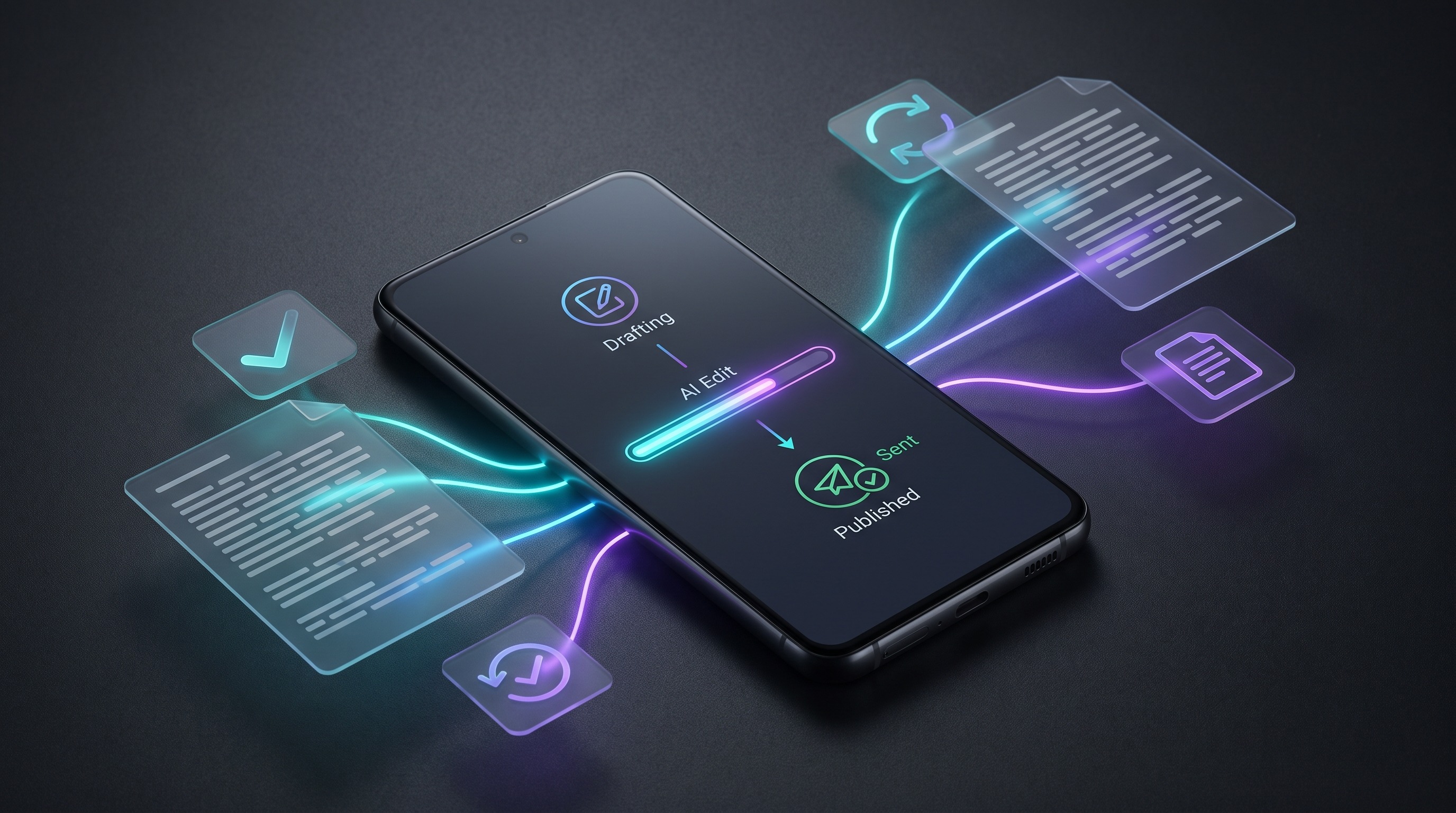
- Grammarly and QuillBot are useful when your main problem is improving text: grammar, tone, paraphrasing, rewriting, and summarizing.
- On Android, the harder problem often starts after the sentence is written: opening the right app, moving context between screens, confirming details, and sending or saving the result.
- FoneClaw fits beside writing assistants as an independent Android AI agent for supported phone actions and productivity workflows, not as a replacement for every specialist writing tool.
AI writing assistants on Android: quick answer
If you are searching for an AI writing assistant Android setup, the best answer depends on the job. Use a writing assistant when the text itself needs help: grammar, clarity, tone, paraphrasing, shortening, or polishing. Use a phone AI agent when the real problem is execution: finding the right conversation, using the right app, carrying context across screens, and completing a supported action on Android.
That distinction matters because Android writing work is rarely just writing. A normal task might be: read a message, understand the context, draft a reply, check the tone, open the messaging app, choose the right recipient, confirm the wording, and send it. Grammarly and QuillBot can help with parts of the text. FoneClaw is designed for the phone-side workflow around supported Android actions.
So the short answer is: Grammarly or QuillBot can be a strong text layer, while FoneClaw belongs in the workflow layer. For broader context on how this differs from simple app shortcuts, see FoneClaw’s guide to Android productivity automation.
What Android users want from writing help
Searches like Grammarly QuillBot Android usually come from a practical frustration. People are not only asking, “Which app writes better?” They are asking, “Which setup helps me finish faster on my phone?”
That job has several layers. First, users want clean writing: fewer typos, better phrasing, clearer tone, and less awkward wording. Second, they want speed: drafting a reply without opening five tools. Third, they want confidence: not sending something too blunt, too casual, or unclear. Finally, they want execution: the message, email, note, or document actually ends up in the right place.
This is why the best AI writing workflow on Android is usually not one app. It is a combination of a writing layer, a voice or command layer, and a confirmation habit. If your task starts with speaking rather than typing, FoneClaw’s overview of the best Android voice control apps explains the wider voice-first category.
What Grammarly and QuillBot do well
A grammar checker paraphraser is useful because writing quality is a real problem on mobile. Small screens make editing harder. Autocorrect can introduce errors. Voice dictation can be fast but messy. A good writing tool helps turn rough text into something more readable before it is sent.
Grammarly’s own product materials describe writing-assistant capabilities around grammar, spelling, clarity, tone, and rewrite suggestions. That makes it especially relevant when you already have the text in front of you and want to improve it before sending, posting, or saving it.
QuillBot’s product materials emphasize paraphrasing, summarization, and related writing tools. That makes it useful when you want alternate wording, a shorter version, or a clearer way to restate a draft. For many Android users, QuillBot is less about controlling the phone and more about reshaping text.
These tools are specialist apps. That is not a weakness. Specialist apps can be excellent at a narrow job. The important comparison is not “specialist app bad, AI agent good.” It is whether the user’s bottleneck is text quality or task completion. FoneClaw’s guide to AI agents vs traditional apps explains that boundary in more detail.
Where writing tools stop on a phone
The Android writing workflow boundary appears when the writing tool has improved the sentence but the task is still not done. You may still need to open WhatsApp, Messages, Gmail, Slack, a notes app, a browser, or a document editor. You may need to find the right thread, paste the text, check context, avoid the wrong recipient, attach something, or wait for a confirmation before sending.
That is where many mobile workflows become slow. The issue is not that the writing assistant failed. It did its job. The issue is that writing was only one step in a chain. On a laptop, copying between windows may feel manageable. On a phone, app switching, keyboard focus, permissions, and small-screen review can make the same chain feel heavier.
When the work becomes a sequence of multi-step tasks, the better question is not just “Which writing app is best?” It is “Which parts should be drafted, which parts should be checked by the user, and which supported phone actions can be handled by an assistant?”
Message, email, and app workflow examples
Consider a few Android examples. In a messaging thread, you may want to reply politely without sounding robotic. A writing assistant can help polish the wording. A phone AI agent can help with the surrounding workflow: locating the conversation, preparing the message, and letting you review before a supported send action.
For email, the difference is even clearer. The writing task might be “make this concise and professional.” The workflow task might be “open the correct email thread, draft the response, include the right context, and leave it ready for review.” Those are related, but they are not the same feature.
For notes and documents, a paraphraser can rewrite a paragraph, while a phone AI agent may be more useful when you need to move a summary into the right app or prepare the next step. The same pattern applies to task managers, calendars, and shared documents: writing quality matters, but placement and completion matter too.
If your main goal is to send texts hands-free, the writing assistant is only one piece of the setup. You also need a safe command flow, the right recipient, and a final confirmation habit so speed does not create mistakes.
Where FoneClaw fits beside writing assistants
FoneClaw productivity automation is best understood as workflow help on Android, not as a direct clone of Grammarly or QuillBot. FoneClaw is an independent Android AI agent. Its role is to help users control supported Android phone actions and complete phone-side workflows with user confirmation where appropriate.
That positioning is important. FoneClaw focuses on supported Android phone actions with visible results, permission-aware flows, user confirmation, and practical fallback. Android permissions, app interfaces, safety checks, and supported action boundaries all matter. A responsible assistant should make those boundaries clear instead of pretending every phone action can be automated perfectly.
Used beside a writing assistant, FoneClaw can help with the operational layer: starting from a voice request, preparing a supported action, and reducing the friction around messages, reminders, app navigation, or other Android tasks. If voice is the fastest way you start these tasks, FoneClaw’s guide to voice control on Android is a useful next step.
How to choose the right Android writing workflow
Use this decision rule: if the sentence is the problem, start with a writing assistant. If the phone workflow is the problem, bring in a phone AI agent. If both are problems, use both, but keep the responsibilities separate.
| Need | Best fit | Why |
|---|---|---|
| Fix grammar, spelling, clarity, or tone | Grammarly-style writing assistant | The main task is improving existing text. |
| Paraphrase, shorten, expand, or summarize text | QuillBot-style writing tool | The main task is generating alternate wording or condensed text. |
| Draft a message and complete supported Android steps | FoneClaw-style phone AI agent | The main task includes phone control, app context, and action flow. |
| Write sensitive or high-stakes messages | Writing tool plus human review | The user should review tone, facts, recipient, and final wording before sending. |
This framework also helps with “Grammarly vs QuillBot Android” comparisons. Grammarly is often stronger as a correctness and tone layer. QuillBot is often chosen for rephrasing and summarization. FoneClaw belongs in a different part of the stack: the Android execution layer around supported actions.
A practical setup for Android users
A practical Android setup can be simple. Keep a writing assistant available for text polishing. Use a paraphrasing or summarization tool when you need alternate wording. Use FoneClaw when the task is not only “write this” but “help me get this done on my phone.”
For example, you might speak a rough request, let the assistant prepare a draft, review the wording, and then confirm the supported action. That is a better mental model than expecting one app to magically understand every context, rewrite every sentence, and operate every Android app without limits.
The best AI writing assistant for Android is therefore not always the one with the most writing features. It is the setup that matches the real bottleneck. If your bottleneck is grammar, choose a grammar tool. If your bottleneck is wording, choose a paraphraser. If your bottleneck is moving from intention to action across Android apps, FoneClaw is designed for that workflow layer while keeping supported-action boundaries clear.