
Best Android Voice Control Apps for Real Phone Tasks
Compare Android voice control apps by what they can actually do: conversation, visible navigation, Gemini Device assistance, Galaxy commands, routines, and governed FoneClaw workflows.
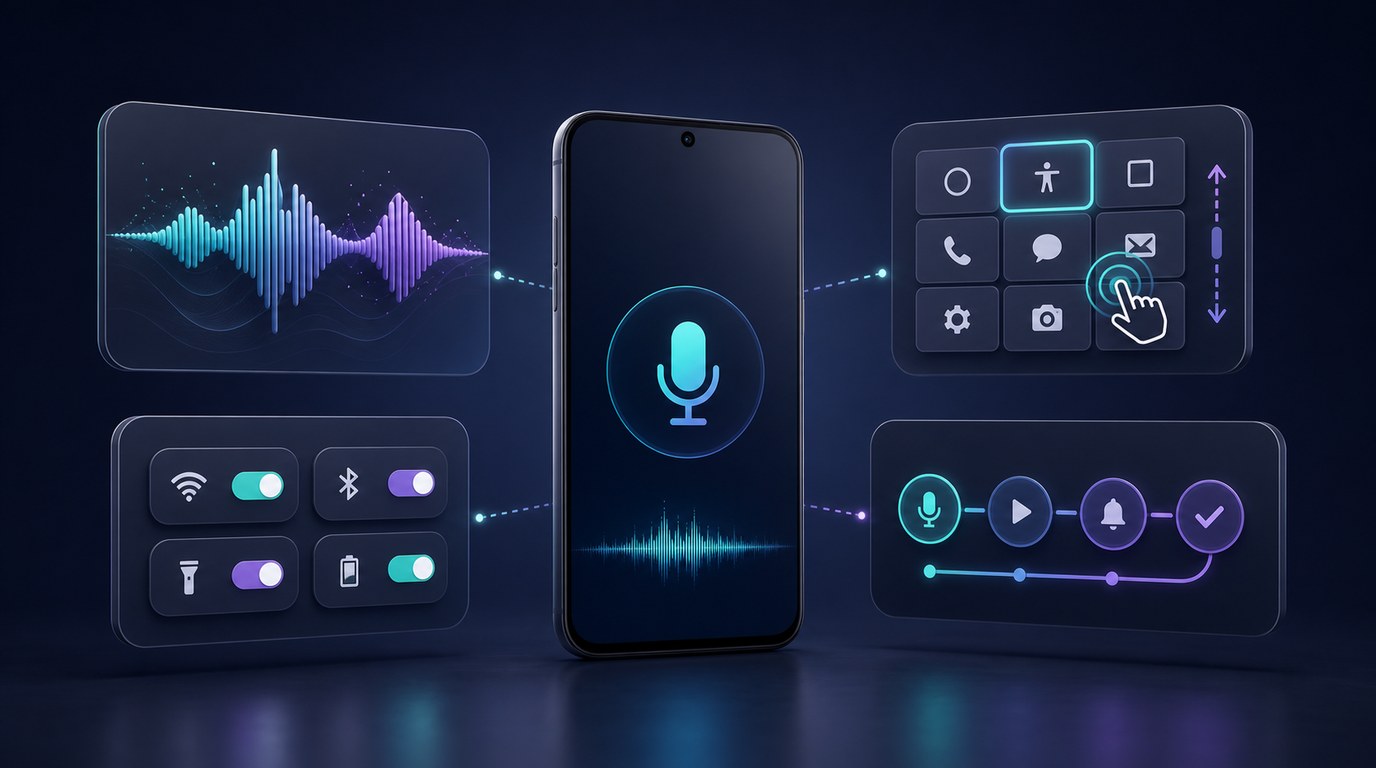
- The best voice control apps for Android serve different jobs: Gemini for selected Device assistance and connected actions, Voice Access for visible interface control, Bixby for compatible Galaxy commands, ChatGPT Voice for conversation, Tasker for predefined routines, and FoneClaw for governed phone workflows.
- A fluent voice reply is not the same as phone control. The real test is whether the app can reach the right permission, app surface, command language, account, and final Android state.
- Voice features in Gmail, Docs, and Keep can help with app-centered inbox search, draft structure, and note organization when the feature is available for the reader’s account and client.
- FoneClaw fits readers who want a configured model to reason and plan while enabled Android tools execute supported actions with visible progress, configurable approvals, interruption, retry, permission recovery, and a result they can inspect.
Choose by the Action You Need
The best voice control app for Android is the one that can complete the action you actually need. Start with Gemini when you want Google’s supported Device assistance, selected Android utilities, notifications, and connected app paths. Choose Voice Access when the goal is direct hands-free navigation of what is visible on screen. Choose Bixby when you use a compatible Samsung Galaxy phone and want Samsung-native commands. Choose ChatGPT Voice when the work is spoken conversation. Choose Tasker when the routine is predefined. Choose FoneClaw when you want a governed Android phone workflow that connects model reasoning to supported tools, visible progress, approvals, interruption, retry, and permission recovery.
That task-first approach prevents a common mismatch. A voice command app may understand a request clearly and still lack the Android role needed to change a setting, open a record, or act inside another app. Another app may be less conversational but better at tapping visible buttons, scrolling a screen, or editing text because that is its supported control path.
Judge the app by the phone state you can inspect. Did media volume actually change? Did the selected message remain a draft or get sent? Did the assistant identify the blocked permission? Did progress stay visible before an action ran? For a full setup path, Android Voice Control Guide: Setup, Hands-Free Tasks, Permissions, and FoneClaw Workflows explains Android defaults, permissions, and recovery steps in more detail.
Compare Outcome, Language, Eligibility, and Cost
A useful comparison looks at outcome, eligibility, language, and cost together. Some apps are easy to try but depend on plan, setup, or command language. Others can act deeply on one brand of phone and only lightly elsewhere.
| Option | Best task or result | Key eligibility and language checks | Cost and setup notes |
|---|---|---|---|
| Gemini | Selected Device assistance, utilities, notifications, calls, messages, and connected app actions where supported. | Google’s Gemini Device assistance guidance says some settings, volume, photo, screenshot, and power actions require Google as the default digital assistant. Notification reading and replying need separate notification access. | Access varies by device, account, supported app, permissions, country, rollout, and plan. Workspace subscriptions are separate from ordinary Gemini phone use. |
| Voice Access | Hands-free navigation, tapping, scrolling, text entry, and editing on the visible Android interface. | Google’s Voice Access command documentation lists English, Spanish, German, Italian, French, Portuguese, and Japanese. Portuguese and Japanese currently support only the top 25 commands. | Built for accessibility control. It needs accessibility setup and works best when visible labels and screen structure are clear. |
| Bixby | Galaxy device commands, Samsung app actions, Quick Commands, and connected-device controls. | Samsung’s Bixby overview ties availability to compatible device, Samsung account, data connection, software, language, country, service, and app support. | Best for Samsung ecosystem tasks on compatible Galaxy devices. |
| ChatGPT Voice | Spoken conversation, reasoning, search-supported answers, memory-supported context, text, and images where available. | OpenAI’s ChatGPT Voice guidance describes current voice capabilities and plan differences. Android phone control depends on a separately supported action path. | Free access is limited, and paid tiers differ. Use it when the main result is a spoken conversation or explanation. |
| Tasker | Predefined routines triggered by time, location, app, event, button, or another context. | Tasker connects user-defined profiles to tasks. Voice triggers may require separate setup or plugins. | The official site offers a direct-download trial and a retail version; local pricing should be checked at purchase time. |
| FoneClaw | Supported Android phone-agent workflows with reasoning, visible progress, governed tools, approvals, stop, retry, and recovery. | Users start with voice or text and can deliberately provide selected screen or image context. Enabled tools, Android permissions, current app state, and approval policy determine execution. | Readers can start with the free default model route. Compatible configured model providers may have their own costs. |
Language can be the deciding factor. Voice Access documents a specific command-language list rather than universal speech control. Bixby has country, language, and Galaxy compatibility boundaries, including Korean and Mandarin Chinese alongside selected English, French, German, Italian, Spanish, and Brazilian Portuguese. Gemini and ChatGPT Voice depend on app, account, region, plan, and client conditions.
If Gemini is your leading option, Gemini App Android Requirements: Live, Screen Context, Phone Actions gives you a closer look at Live, screen context, Device assistance, and connected actions.
Voice Features Inside Gmail, Docs, and Keep
Google has also introduced voice experiences for specific Workspace apps. The Workspace voice announcement describes Gmail Live for conversational inbox search, Docs Live for shaping document drafts from a conversation, and Keep Live for organizing spoken thoughts into notes.
Use those features when the task belongs inside the supported app and is available for your account and client. Asking Gmail about an inbox thread, speaking a Docs draft into structure, or turning ideas into Keep notes can be very different from changing Android settings, navigating another app, or sending through a separate service.
The subscription terms deserve a separate check. Google’s AI plan update confirms Gmail and Keep voice features for Google AI Plus, Pro, and Ultra, while Docs is listed for Pro and Ultra. Business Workspace customers are coming soon in the main announcement. Before paying or planning a workflow around them, verify the exact account, app client, language, region, and rollout status.
Follow a Phone Task to a Checked Result
To compare a voice control app fairly, follow one phone task from request to result. For a setting such as media volume, the useful outcome is the final volume state. Gemini Device assistance can handle selected utilities when the required default-assistant setup and permission path are in place. Bixby may be the better first route on a compatible Galaxy phone. FoneClaw can use a configured model to reason and plan, then run supported Android tools to inspect volume status, adjust a supported stream, and let the user recheck the result.
Visible interface tasks have a different rhythm. If you say, in a supported Voice Access command language, scroll down, tap Settings, or type a harmless note into the current field, Voice Access is often the cleanest tool. Its strength is controlling visible Android elements through accessibility, with microphone access, supported commands, and clear screen labels doing much of the work.
Conversation has its own value. ChatGPT Voice can help you talk through a plan, summarize options, or work through an idea by speech. When that discussion becomes a phone action, move to a route with the needed Android authority, such as Gemini Device assistance, Bixby, Voice Access, Tasker, or FoneClaw.
Messages show why outcome wording matters. A draft is different from a sent text, and opening a dialer is different from starting a call. In FoneClaw, the configured model interprets the goal, while supported Android tools execute under enabled scope, required permissions, current policy, and visible result checks. For recipient selection and send review, Hands-Free Texting on Android and Galaxy: Summarize, Draft, Review gives the messaging workflow its own practical guide.
Current FoneClaw voice input supports hold to speak, slide to cancel, and speech-to-text. The floating conversation can keep replies and delegated task progress visible while a workflow is running. Canceling voice capture and stopping a running execution are separate actions, so test both when you compare apps.
Check the Conditions That Decide Your Choice
When a voice command fails, check the layer that owns the action. Microphone access handles speech capture. Default-assistant status matters for specific Gemini Device assistance actions. Accessibility access powers Voice Access. Notification access is separate for notification reading or replying. Samsung account, compatible Galaxy hardware, software, country, and language shape Bixby results. Tasker depends on the profile, trigger, task definition, and any plugin path you set up.
Match the permission to the job instead of switching models at random. Contacts helps resolve people; Phone supports call paths; SMS or messaging access supports message workflows; Calendar access supports calendar work; Accessibility enables visible interaction. A different model can improve reasoning, but Android still controls which app or service may act.
Language, region, account type, rollout stage, supported client, connected apps, and current screen state can all change the result. The practical diagnosis is simple: did the app hear you, understand the intent, reach a supported action, receive the required permission, select the right target, and show the final result?
Try Candidates on Your Own Phone
Use a short, harmless test before trusting any hands-free Android app with important work. Five minutes is enough to understand how the product behaves on your own device; it is not a benchmark score or a prediction for every future task.
- Conversation: Ask a planning question and a follow-up. Check whether the app preserves context and lets you interrupt naturally.
- Visible control: Open a simple screen and use Voice Access in a supported command language to scroll, tap a visible label, and enter harmless text.
- Connected action: Ask Gemini or Bixby for a low-risk utility such as checking or changing a supported setting, preparing a timer, or opening a contact path.
- Governed workflow: Ask FoneClaw to inspect media volume, request a supported adjustment, watch progress and approval behavior, then recheck the volume state.
- Recovery: Remove one low-risk permission or cancel midway, then retry with a narrower request. Note whether the app explains the missing condition.
Record three things: the spoken request, the target the app selected, and the final state you could verify. Stop before purchases, public posts, irreversible account changes, or messages you are not ready to send. A reversible task reveals more about daily usefulness than a polished demo that never touches the phone state you care about.
Choose a Workable Combination
One Android phone can hold more than one voice app, and a combined setup is often the practical answer. Put the app that handles your most frequent action closest to the default trigger. Then use secondary tools for their strengths: visible navigation, Galaxy-specific commands, spoken conversation, predefined routines, or governed Android workflows.
Check trigger and microphone interactions after installing more than one assistant. A long press, wake phrase, floating panel, accessibility service, or notification permission can change which app receives the request. The right combination is the one that passes your low-risk test on your device, account, language, region, and installed apps.
For preset routine choices, Tasker Alternatives for Android: Practical Chooser compares automation-style routes. To inspect FoneClaw’s current capability areas, use FoneClaw Features. To try a reversible workflow on your own Android phone, use FoneClaw Download and start with a low-risk action such as checking volume, opening navigation, preparing a visible draft, or testing permission recovery.