
Android Voice Control: Voice Access Setup and Fixes
Set up Android voice control, check Voice Access language support, fix listening and command problems, and try supported FoneClaw phone tasks.
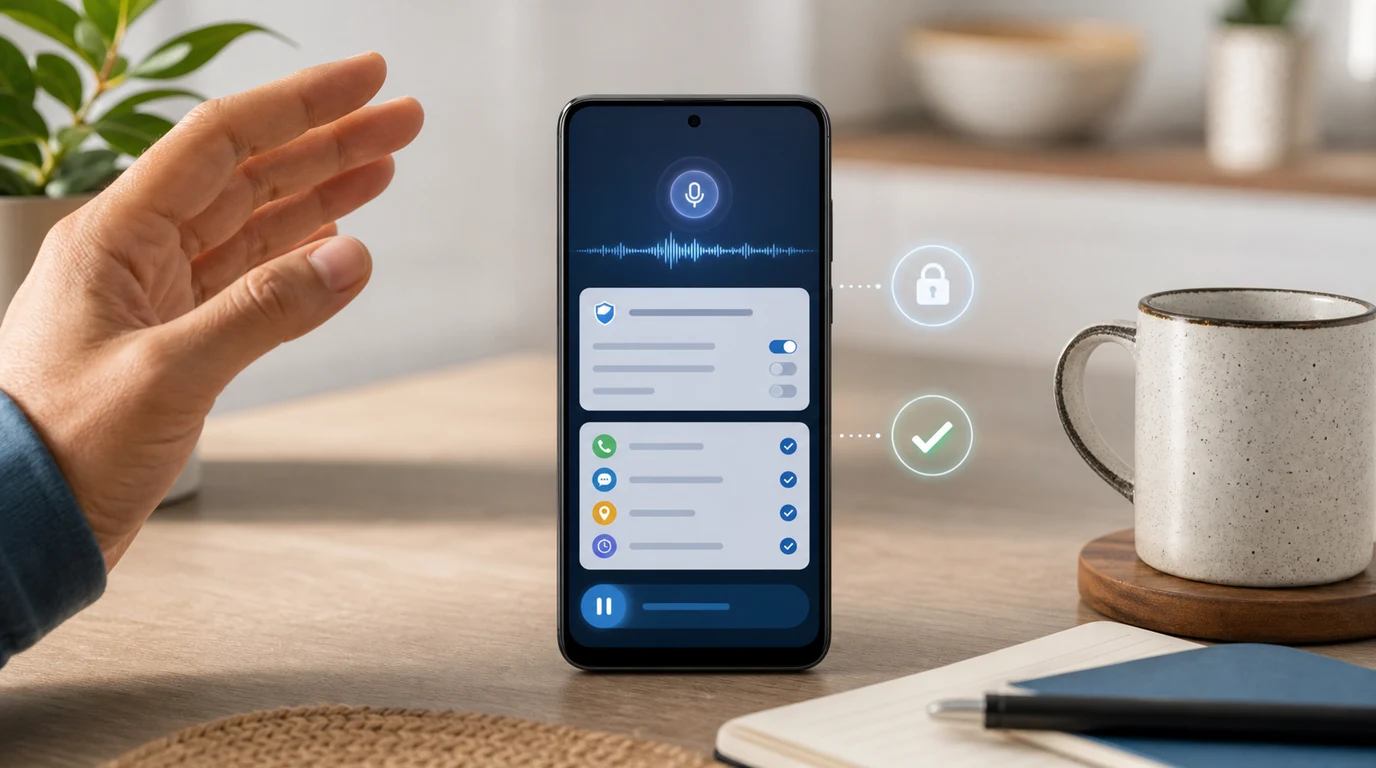
- Android voice control works best when you separate the route: Voice Access controls visible screen elements, while FoneClaw connects voice input to supported Android phone workflows.
- Voice Access app version 17.0 and newer uses a required Voice Access shortcut to start or pause listening; removing or disabling that shortcut turns the service off.
- Older Voice Access app versions use the Use Voice Access setting for the service; the optional accessibility shortcut toggles the service, and full disable requires Use Voice Access to be off.
- Supported Voice Access command languages are English, Spanish, German, Italian, French, Portuguese, and Japanese, with Portuguese and Japanese currently limited to the top 25 commands.
Choose the Route and Check Language
Android voice control works best when you choose the route before changing settings. Voice Access is the visible-control route: it listens for spoken commands that navigate the current screen, tap visible controls, scroll, edit text, and move around Android. FoneClaw is the goal-based phone-task route: you can speak or type a request, and a configured model can reason and plan while enabled Android tools execute supported actions under the phone’s current permissions and approval policy.
Start with language. Google’s Voice Access command reference lists English, Spanish, German, Italian, French, Portuguese, and Japanese as supported command languages. Portuguese and Japanese currently support only the top 25 commands. Chinese, Korean, Russian, Arabic, Thai, Vietnamese, and Indonesian are not listed for current Voice Access commands, so Android interface language alone should not be treated as command-language support.
Before setup, check three basics: your installed Voice Access app version, microphone access, and whether the app you want to control has clear visible labels or stable screen elements. Google’s Workspace voice announcement also adds app-specific voice features: Gmail Live supports conversational inbox search, Docs Live helps shape document drafts from conversation, and Keep Live organizes spoken thoughts into notes. Gmail and Keep are listed for Google AI Plus, Pro, and Ultra, while Docs is listed for Pro and Ultra; business Workspace customers are coming soon.
If you are still deciding which voice app fits your task, Best Android Voice Control Apps compares Voice Access, Gemini, Bixby, ChatGPT Voice, Tasker, and FoneClaw by completed phone result.
Set Up Voice Access by App Version
The setup path depends on the Voice Access app version, not the Android OS version. That distinction matters because newer Voice Access versions changed the service controls. Google’s current Voice Access setup guide says app version 17.0 or higher uses the Voice Access shortcut as the required control for starting and pausing listening.
For Voice Access app version 17.0 or higher, open Settings, then Accessibility, then Voice Access, then Voice Access shortcut. Turn on the shortcut and choose the shortcut style that fits your device: the floating button is the default, and supported alternatives can include a navigation button, volume keys, or an accessibility gesture. Use that shortcut to start or pause listening. To turn the service off, remove or disable the Voice Access shortcut.
For Voice Access app versions below 17.0, the setup branch is different. The Use Voice Access setting enables the service. If you configure the optional accessibility shortcut, that shortcut toggles the service on or off; it is not merely a listening pause. To fully disable the service in this older branch, turn Use Voice Access off. Older help pages may refer to an Activation button, but that button was removed from app version 17.0. If your phone’s menu does not match a tutorial, check the installed app version first.
After setup, you can start Voice Access from the shortcut, the Voice Access app, or the notification. In app version 17.0 or higher, the shortcut starts or pauses listening. You can also pause with a supported command such as “Stop listening” when English is your command language, or by using the pause button inside the notification. A supported Gemini “Hey Google” path can start Voice Access in certain setups, including specific lock-screen behavior; otherwise, unlock the phone and use the shortcut or app. Android 12 and newer show the green microphone indicator when microphone access is active, while older visual indicators vary by device.
Try Navigation and Text Safely
Begin with supported English examples only if English is your configured Voice Access command language: “Open Settings,” “Go home,” “Go back,” “Show numbers,” “Tap 3,” “Scroll down,” and “Stop listening.” If you use Portuguese or Japanese, inspect the current in-app command list because those languages currently support only the top 25 commands.
Run a low-risk navigation test first. Say “Open Settings,” then “Go back,” then “Go home.” If a screen has multiple similar controls, say “Show numbers” and choose the visible number after the overlay appears. When the screen changes, inspect the refreshed labels or numbers before issuing the next command; a target that was correct on the previous screen may no longer exist.
Next, try harmless text. Open a notes field and dictate one short sentence. Text-entry mode and navigation commands are different states, so check whether the phone is inserting words or treating them as commands. A recognized phrase on screen proves that the phone heard words, but the final check is whether the intended screen, field, or button changed as expected.
For message-heavy workflows, WhatsApp Voice Commands is the better next guide when the task involves recipient selection, visible drafts, and final send control inside WhatsApp.
Fix Voice Access Not Listening
When Voice Access is not listening, look for an observable state before changing multiple settings. Confirm the installed app version and the correct control path. For app version 17.0 or higher, the Voice Access shortcut starts or pauses listening, and removing or disabling that shortcut turns the service off. For older app versions, Use Voice Access controls the service.
On Android 12 or newer, the green microphone indicator helps show whether microphone access is active. If the indicator never appears, check microphone permission and whether another app is holding the microphone. Listening can also pause because of a setting: Voice Access settings can include a timeout after about 30 seconds of silence, cancel-on-touch behavior, and screen-wake listening preferences. Menu wording can vary by device and app version, so inspect the settings that are actually present on your phone.
Speech recognition is primarily processed on device, according to Google’s setup guidance, but configuration and system language can send audio to Google for processing. An offline language pack may allow recognition without a network connection, while online target services still need connectivity.
If the shortcut starts listening but a wake phrase does not, isolate the wake setup. Confirm the supported Gemini entry path, default assistant behavior, lock-screen state, and the current Voice Access shortcut path. A small, staged fix is easier to verify than a broad settings reset.
Separate Hearing From Action Failure
A voice problem usually sits in one of three places: hearing, command interpretation, or final action. Use a short diagnosis table before changing settings.
| Symptom | Likely layer | Smallest useful recovery |
|---|---|---|
| No recognized words appear. | Microphone, listening state, language, network condition, or competing audio app. | Start listening again, move to a quieter place, use a shorter command, check microphone access, or try a headset mic. |
| The wrong phrase appears. | Recognition quality, speech pace, language support, or background noise. | Pause, speak more slowly, use one short command, and confirm the supported command language. |
| The phrase is correct but the wrong target changes. | Visible labels, numbers, current screen, text-entry mode, or app state. | Say “Show numbers,” inspect the refreshed screen, exit text entry if needed, and select the current visible target. |
| Words cut off or the app freezes. | Long utterance, competing microphone use, app update issue, or resource pressure. | Pause listening, close the competing recorder or call app, update Voice Access and the Google app, then retry one short command. |
Google’s Voice Access troubleshooting guidance recommends checking updates, setup, network conditions, a quieter environment, clearer speech, and an optional headset mic. Active listening uses more power than an inactive service, so daily use should include a reliable pause habit.
Action failures need a different fix. If Voice Access understood “Tap 4” but the screen changed before the command ran, show numbers again. If speech is being typed into a field instead of treated as a command, leave editing mode or use a navigation command. If notification controls are hidden, check notification and Do Not Disturb settings. Canceling or backing out changes the current flow; it does not undo a setting or message that has already been applied.
Pause, Cancel, or Turn Voice Access Off
Pause, cancel, and disable are different controls. Pausing listening stops Voice Access from taking more spoken commands. Canceling the current action interrupts or backs out of the current screen flow. Turning the service off removes the active Voice Access route until you enable it again.
| Goal | Current control | What it changes |
|---|---|---|
| Pause listening in app version 17.0 or higher | Use the Voice Access shortcut, say “Stop listening” in a supported command language, or press the pause button inside the notification. | Voice Access stops listening for commands until you start it again. |
| Pause listening in older app versions | Use a supported “Stop listening” command or the pause button inside the notification. | Listening pauses while the service can remain enabled. |
| Cancel or back out | Use the current app’s visible cancel, back, or close control, or a supported navigation command. | The current screen or in-progress flow changes. Applied changes still need their own undo path. |
| Turn Voice Access off in app version 17.0 or higher | Go to Settings, Accessibility, Voice Access, Voice Access shortcut, then remove or disable the shortcut. | The required shortcut is removed, turning off the service path. |
| Turn Voice Access off in older app versions | Turn Use Voice Access off. Remove the optional accessibility shortcut as cleanup if you configured one. | The service is disabled. Removing the optional shortcut alone is not a complete shutdown. |
Screen-wake listening options can also change behavior. Voice Access may listen always, listen unless previously paused, or never listen when the screen wakes, depending on your settings. Voice Access recognizes commands rather than a specific speaker identity, so choose a wake and pause setup that fits the environment where the phone is used. When voice itself is unreliable, use touch to pause, go back, or disable the service.
Complete a FoneClaw Phone Task by Voice
FoneClaw is independently configured and does not require Voice Access setup. Use it when you want to start a supported Android phone workflow by voice or text and keep progress visible. A media-volume check is a good first exercise because the outcome is easy to inspect and adjust again. Hold to speak, ask FoneClaw to check current media volume, then request a modest change. After the tool runs, ask FoneClaw to recheck the volume state.
FoneClaw voice input supports hold-to-speak, slide-to-cancel, and speech-to-text. Sliding to cancel is useful before submission when you decide the spoken request is not right. Stopping a task that is already running is a separate control, because at that point the request has moved from capture into execution. Floating conversation and delegated progress help you track what is happening while the task runs.
In this workflow, the configured model understands the request and plans the steps. Enabled Android tools inspect the current volume state, apply the supported stream change, and return a result under the actual permission and approval policy on your device. Current permission status can be checked when access is missing, and fresh screen context matters after navigation because the target may have changed.
FoneClaw includes 100+ built-in tools across practical Android capability areas, but the enabled relevant tool and its permissions decide each task. You can start with the free default entry, and compatible external model services can have their own usage costs. To inspect current capability areas, use FoneClaw Features. To install or review current release information, use FoneClaw Download.
For larger voice-driven routines, Automate Multi-Step Tasks explains how to structure multi-step Android work with confirmation and recovery points.
Keep a Daily Recovery Route
For everyday hands-free use, pick one reversible task and keep a manual fallback within reach. A good daily task might be opening Settings, scrolling a page, dictating a note, checking media volume, or preparing a message draft. The point is to confirm that the phone heard you, selected the right target, and reached a result you can inspect.
Keep microphone, connection, and screen-wake settings predictable. Offline recognition may work when the right language pack and settings are present, but online account data, cloud services, maps, mail, and many app tasks still need a connection. If long utterances get cut off or another app is using the mic, pause and retry with one short command.
Accessibility-centered voice use can require a different setup rhythm, especially when Voice Access is combined with TalkBack or other assistive tools. Voice Activated Phones for Blind Users gives that use case the deeper treatment it deserves. For this guide, the most useful next step is simple: configure the correct Voice Access branch, run a harmless command test, and keep a known way to pause or turn the service off.