
Android AI Information Inbox: Notifications, SMS, Email, and Calendar
Build an Android AI information inbox that preserves source identity, distinguishes earlier information from current status, and turns reviewed findings into approved actions.
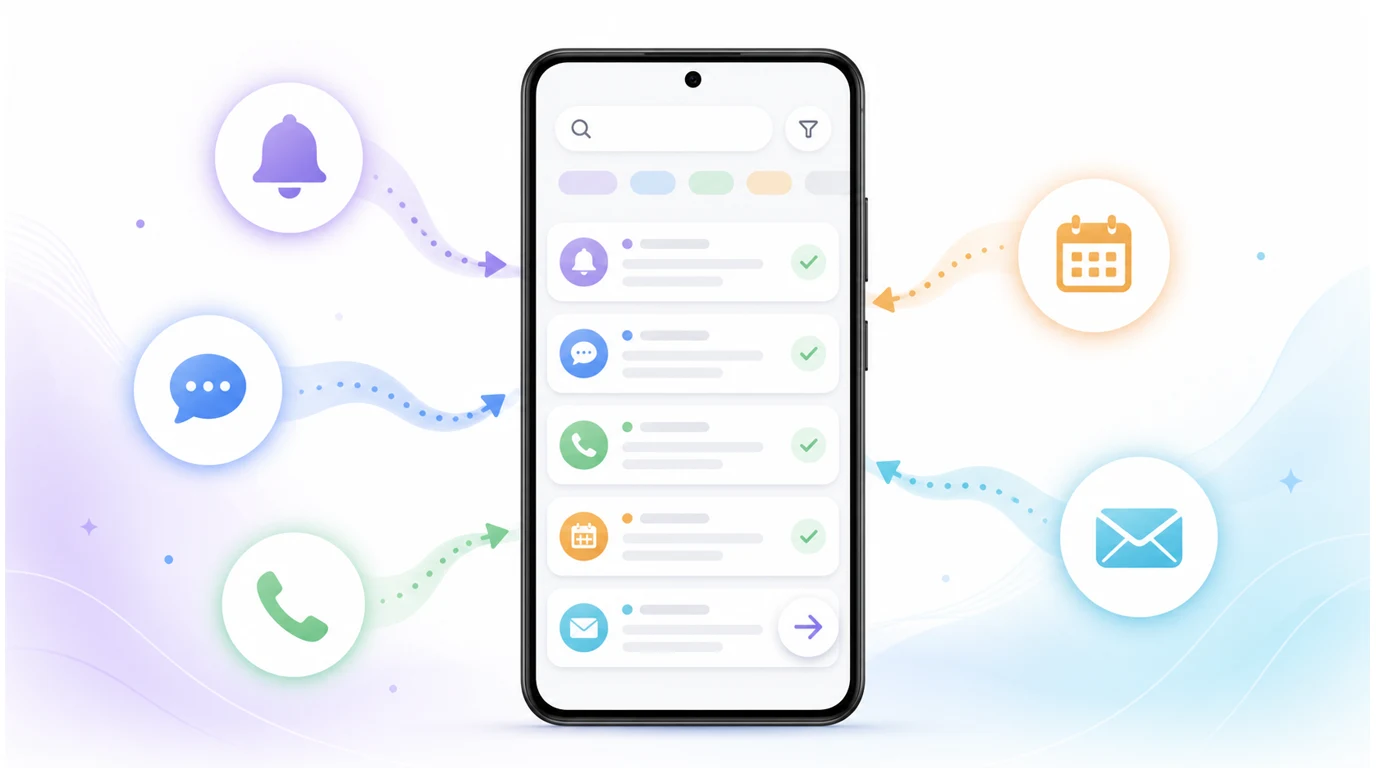
- A dependable Android AI information inbox brings important updates into one review view while preserving each item's source, timestamp, account, and status.
- Information already collected in FoneClaw supports fast search and triage, while sensitive or time-dependent decisions should begin by reopening the original record.
- AI can group related items and propose priorities, but the reader decides which findings are connected and which follow-up action is appropriate.
- FoneClaw separates discovery from consequential actions so sending, editing, deleting, and scheduling remain tied to exact targets and visible approval.
An Android AI information inbox should help you find what needs attention without hiding where the information came from. The useful result is more than a summary: every item should retain its source, account, timestamp, read state, and enough context to verify it before any follow-up action.
FoneClaw's Information Inbox provides a shared review view for notifications, SMS, call history, calendar events, and email. From building this workflow, we have learned that unification works best as a review process. Information already collected supports fast triage, refreshing confirms recent changes, and governed Android actions handle the approved follow-up.
What an Android AI Information Inbox Should Unify
Use a unified inbox when app-by-app checking makes it difficult to see the relationship between an alert and a commitment. One person may call, send a text afterward, and refer to a calendar event that was arranged by email. Reviewing those items together can reveal the complete task faster than opening each app independently.
The shared view should preserve four identifiers:
- Source: whether the item came from a notification, message, call record, calendar, or configured mail account.
- Time: when the original event occurred and when FoneClaw last collected or refreshed it.
- Identity: the sender, caller, account, calendar, or app associated with the item.
- Status: whether it is new, read, reviewed, dismissed, removed from the Information Inbox, or changed in the original app.
This structure allows AI to group and summarize information while keeping the evidence visible. A notification preview remains a notification preview. A previously collected calendar entry remains tied to its calendar. An email excerpt retains its account and message identity. The inbox becomes a practical index across sources while the original apps continue to hold their records.
Android notification access begins with a user-granted listener service. The Android NotificationListenerService reference explains that approved listeners receive callbacks when notifications are posted, removed, or reprioritized. Device state, work-profile policy, and system configuration can affect this flow.
For deeper work on ranking alerts and reducing interruptions, AI Notification Summary on Android: Prioritize Alerts and Follow Up covers notification-specific triage beyond the cross-source view used here.
Know Whether Information Needs Refreshing
Before acting on an inbox result, check when FoneClaw collected it and whether the original record may have changed since then. Two entries can display similar text while representing different moments in a conversation, event, or account.
FoneClaw's Information Inbox searches events it has already collected. This makes time-window searches and cross-source summaries fast, but the displayed row may reflect an earlier status. A notification may have been dismissed, a calendar event may have moved, or an email thread may have received another reply after the item entered the inbox.
Refreshing brings recent available changes into the review view. Keep the refresh time visible so you can judge whether the information is recent enough for the decision. If a source is temporarily unavailable, an earlier item can still help you discover what happened, provided its timestamp remains attached to the summary.
Each original source follows its own access path. SMS and call history use their applicable Android permissions. Calendar actions use the selected calendar context. Email uses a configured mail account and its service connection. These paths have separate permissions, account requirements, and failure states.
Use information already collected to answer questions such as “What did I miss this afternoon?” When the next step depends on current status, refresh first and reopen the exact text message, call record, calendar event, or email. Check its latest target, content, time, and status before replying, rescheduling, calling back, or deleting anything.
Search and Triage by Time, Source, Person, and Urgency
Begin triage with a narrow time window. “Since 4 PM,” “during my meeting,” or “this morning” produces a more reviewable set than an unrestricted summary of everything on the phone. Add a source or person when the first result remains crowded.
A useful search sequence is:
- Choose a time range tied to a real review period.
- Filter by source when only one communication channel matters.
- Search for a person, organization, project, or known event.
- Open the original item before assigning a consequential follow-up.
- Mark it reviewed only after you have decided what it means.
AI can propose urgency based on words, time, sender, or proximity to a calendar commitment. Treat that label as a sorting aid. “Urgent,” “today,” or “please call” may justify earlier review, while the user still decides whether the request is genuine, relevant, and correctly associated with the intended person.
Grouping also needs restraint. Matching a missed call and a message from the same normalized number is stronger than connecting two items because they contain a common first name. Calendar titles and mail subjects can support a relationship, but they should not overwrite source identity.
Collected items may include a reference to the original record. That reference helps prevent duplicate displays when the same event appears more than once. It also provides a route back to the message, call, event, or email. When a reference is unavailable, compare source, account, timestamp, sender, and content rather than assuming similar text represents the same event.
Build a Daily Brief That Connects Messages With Commitments
A dependable daily brief answers three questions: What happened, what commitment does it affect, and what decision is waiting for me? It should separate observed facts from inferred relationships and proposed actions.
Consider a morning example. The inbox contains a missed call from Maya at 8:10, an SMS from Maya at 8:13 asking whether today's review can move, and a calendar event titled “Design review” at 10:00. The facts are the call, message, and event. The likely relationship is that the message refers to the calendar event. The proposed action might be to check the event's latest details and prepare a response. Those three levels should remain distinguishable.
Build the brief in this order:
- List missed or unread items inside the chosen time window.
- Group strong matches using source identity, participant details, and timing.
- Show relevant calendar commitments without changing them.
- Identify conflicts, unanswered requests, and items approaching a deadline.
- Present possible follow-ups as choices rather than completed actions.
If message volume is the main problem, Summarize Text Messages on Android With AI: SMS Inbox Triage provides a dedicated workflow for narrowing SMS conversations without losing sender and thread context. When the brief reveals a broader scheduling problem, AI Personal Assistant for Planning and Scheduling on Android: From Goal to Approved Plan explains how commitments can become a reviewed plan.
An evening brief can use the same method with a different goal. Search for unresolved items since the morning review, verify whether planned follow-ups were completed, and carry only genuine open commitments forward. This prevents an earlier urgency label from being treated as the latest status.
Turn an Inbox Finding Into a Reviewed Android Action
Move from review to action only after resolving the exact original item and destination. Discovery can be broad; execution should be specific. “Follow up with the client” is a useful finding, while an action needs the correct person, channel, message, timing, and approval.
Use this sequence for a consequential follow-up:
- Select the inbox item that triggered the task.
- Refresh the relevant source and reopen the original message, email, event, or call record.
- Resolve the exact recipient, account, calendar, event, and destination app.
- Prepare the proposed action and expose every consequential field.
- Approve sending, changing, or deleting only after those details are correct.
- Verify the result in the original app or account.
FoneClaw separates read-only discovery from Android actions that change data or contact another person. An earlier mail summary can help identify an unanswered request, while the original message thread supplies the latest reply target. A calendar reminder can surface a conflict, while reopening the event confirms its current time, calendar, and attendees.
Mail, SMS, calendar, and call workflows use different action contracts. Sending a message requires the exact recipient and content. Updating a calendar event requires the selected event and changed fields. Starting a call requires the resolved number and a visible point where the user takes over the conversation.
For email-specific summaries, drafts, approvals, and calendar follow-up, AI Email Assistant Android: Summaries, Drafts, Approval, and Calendar Follow-Up carries the workflow from source message to verified result.
Grant Only the Data Access Each Source Needs
Grant access according to the source you intend to review. Notification access enables the notification-listener path. Call history, SMS, calendar, and mail accounts each use their own Android permission, role, account, or service requirement.
SMS data is exposed through Android's telephony provider under sensitive permission and role constraints. The Android SMS provider reference describes the platform structure, while device policy and app-distribution rules can further affect availability.
Call history and calendar access are also sensitive. Android's permission reference documents permissions such as call-log and calendar reads, including additional restrictions around call history. Calendar access can use direct provider operations or an intent that hands a common task to the Calendar app. The Android Calendar Provider overview explains those distinct routes.
Email follows configured mail-account access rather than a general Android inbox permission. Confirm which account is connected, what folders or messages the workflow can read, and which account would send a proposed reply.
We design FoneClaw to request the access needed for the selected workflow and to preserve useful partial operation when another source is unavailable. If calendar access is denied, notification or mail review can still proceed. If a mail account is not configured, local notification and communication sources can remain available according to their permissions.
This approach follows Android's guidance on minimizing permission requests: ask for necessary access in context, respect denial, and use scoped alternatives where they fit the task.
Understand Read, Reviewed, and Delete States
Check what a status change affects before using it for cleanup. “Read,” “reviewed,” and “deleted” can refer to the Information Inbox, the original app, or both. The action preview should make that scope explicit.
A local reviewed state records that you have triaged an Information Inbox item. It helps remove the item from an unread review queue while preserving its origin. A source read state belongs to the underlying message or service and may follow different synchronization rules.
Deleting an item collected in FoneClaw removes that entry from the Information Inbox. The original text message, call record, calendar event, email, or other source record remains in its original app or account. This cleanup is useful for removing stale entries or narrowing future summaries without changing the underlying record.
Deleting from the original source is a separate consequential action. Deleting an email operates on the selected message in the configured mail account. Deleting a calendar event operates on the selected event and calendar after approval. These actions should display the exact target and be verified in the original service afterward.
Before removing many Information Inbox items, preview the filter. Use a bounded time window, source, status, or source reference, and inspect a sample of matching entries. For uncertain results, narrow the filter instead of relying on a broad phrase such as “delete old messages.” If an original-source action reports an uncertain result, reopen that source before retrying so one delayed response does not produce duplicate changes.
Use the FoneClaw Information Inbox as a Reliable Routine
We built the FoneClaw Information Inbox to turn scattered phone information into a repeatable review routine. It brings key communication and scheduling signals into one searchable view, then connects a selected finding to the appropriate governed Android tool.
Use two bounded review windows rather than continuous broad summarization:
- Morning review: Search items collected since the previous evening, group strong relationships, and compare unanswered requests with today's commitments.
- Evening review: Search since the morning check, identify unresolved items, refresh time-sensitive details, and carry forward only genuine open work.
Search before summarizing. A defined time range and purpose produces a brief you can verify. Preserve source labels and timestamps in every group. When a proposed response, event change, call, or deletion matters, refresh and reopen the original item before inspecting the exact target.
Then approve only the final action. A useful routine might find a missed call, connect it with a text and meeting, reopen the event, prepare an SMS response, and wait for review. After sending, confirm the message in its source thread and mark the Information Inbox finding reviewed.
The FoneClaw Features page maintains the current supported Information Inbox and Android action capabilities. The FoneClaw Download page provides current installation choices. Our continuing direction is to make cross-source review faster while preserving recency, source identity, account scope, approvals, and visible evidence of completion.