Android AI Workflows
📅 2026-08-03 ⏱️ 12 min read Dean Dean

AI Email Assistant on Android: Summaries, Drafts, Approved Sending, and Calendar Follow-Ups

A practical FoneClaw guide to using an AI email assistant on Android: configure an account, summarize inbox items, draft replies, approve sending or deletion, and turn email into calendar follow-up actions.

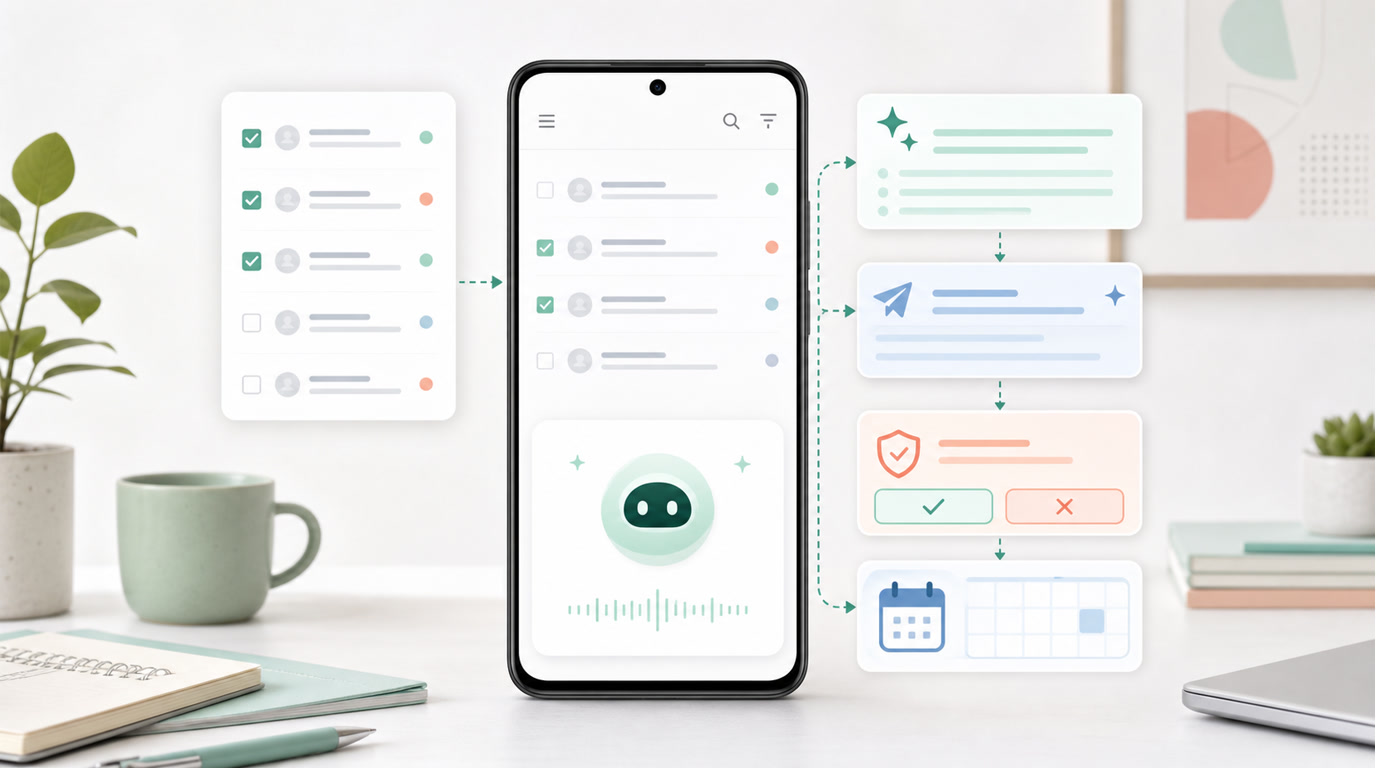
Android email assistant workflow showing account setup, inbox summary, draft review, approved send, and calendar follow-up
📋 Key Takeaways
  • An AI email assistant on Android can summarize selected mail, draft replies, prepare follow-ups, and use supported mail tools after account setup, but drafting text is different from sending or deleting email.
  • FoneClaw mail workflows can use account, list, read, send, and delete operations, with model writing separated from tool execution.
  • Sending or deleting email is a consequential action: the recipient, payload, account, attachments, and target message should be visible before approval.
  • Email can become a calendar follow-up when dates, time zones, attendees, locations, and commitments are clear enough to propose and confirm a calendar action.
Table of Contents
  1. What an AI Email Assistant Can Do on Android
  2. Connect and Verify an Email Account
  3. Search, Read, and Summarize an Inbox
  4. Draft a Reply Without Sending It
  5. Send or Delete With Visible Approval
  6. Turn Email Into Calendar and Follow-Up Actions
  7. Three Practical Android Email Workflows
  8. Set Up a Controlled Email-Agent Workflow

What an AI Email Assistant Can Do on Android

An AI email assistant on Android can help with four practical states: find the right messages, summarize selected content, draft a reply, and prepare a follow-up action. With FoneClaw, those states are handled through a clear split. A configured model can understand the request and write useful text. Supported mail and calendar tools perform the actual retrieval or action after account setup and the right checks.

The key boundary is action. Summarizing a returned email is not the same as sending an email. Drafting a reply is not the same as approving it. Finding a stale invoice is not the same as deleting it. A useful email agent on phone should keep these states visible so the user knows when the system is reading, when it is writing, and when it is about to change something in the mailbox.

FoneClaw supports mail account, list, read, send, and delete operations, plus calendar tools for follow-up workflows. These capabilities support a practical Android email workflow, while account setup, provider compatibility, tool policy, and user approval remain part of the experience. For the broader tool surface, see FoneClaw's 100+ built-in tools.

Email taskModel roleTool roleBoundary
Find messagesInterprets filters and intent.Mail listing retrieves matching messages.Configured access is required.
Read and summarizeSummarizes returned content.Mail reading retrieves selected message content.No continuous inbox monitoring claim.
Draft a replyWrites text and tone options.Mail tools provide context when allowed.Text generation does not send.
Send or deleteExplains the proposed action.Mail send or delete executes the change.Target and payload need visible approval.
Calendar follow-upExtracts dates and commitments.Calendar tools create or update when confirmed.Ambiguous time and ownership need clarification.

Connect and Verify an Email Account

FoneClaw mail workflows require account configuration. The assistant cannot summarize mail it has no configured access to, and it should not pretend that every email provider is automatically supported. FoneClaw can inspect configured accounts and support saving account configuration through the product's controlled setup path.

Account setup should be handled as a configuration step, not as a prompt where a user casually pastes secrets into a conversation. The user should know which account is being added, which provider or server path is being used, and whether the account appears in the account list afterward. The goal is not to expose credentials in article copy; the goal is to make account identity visible before mail retrieval begins.

A good verification step is concrete. Confirm that the account appears in the configured account list. Check that the displayed account label matches the intended mailbox. Run a low-risk list or read action against a small filtered set before using send or delete. If the account is personal and work mail is also configured on the phone, make sure the assistant is using the right mailbox for the task.

Readers comparing account access across AI tools may also need sign-in hygiene for other assistants. Claude AI Login With Google on Android: Sign In, Email Links, and Recovery covers adjacent Android account-access patterns, while this page stays focused on FoneClaw mail setup and tool execution.

Search, Read, and Summarize an Inbox

Inbox summary should start with a filter, not a vague request to read everything. Useful filters include account, sender, date range, unread status, subject keywords, labels, or a known thread. FoneClaw can retrieve candidate messages and read selected content when the account is configured and the task is supported. The model then summarizes the returned material.

The model should summarize for a purpose. A morning triage summary might group mail by urgent decisions, deadlines, waiting-on-someone items, and FYI messages. A project summary might focus on open questions, commitments, attachments, and dates. A travel summary might extract confirmation numbers, check-in windows, locations, and calendar-worthy times. Without criteria, an inbox summary can become a generic paragraph that does not help the user act.

FoneClaw should also preserve the difference between mail retrieval and notification triage. Email tools work with configured mail accounts. Android notification tools work with visible or allowed notification context. If your goal is broader notification management across apps, AI Notification Management on Android: Briefs, Triage, and Phone Actions keeps that separate workflow in its own guide.

There is no continuous inbox monitoring claim here. A user asks for a bounded task, FoneClaw retrieves mail through supported tools where configured, and the model summarizes what the tool returns. That keeps the workflow inspectable: which account, which messages, what summary goal, and what next action.

Draft a Reply Without Sending It

Drafting is where an AI email assistant on Android can save time without crossing into consequence too early. A good request is specific: "Draft a polite reply saying I can meet Tuesday afternoon, ask for the agenda, and keep the tone brief." The model can produce the reply text, but generating that text does not send an email.

Before a draft becomes a sent message, the user should check four items. First, the recipient: is this the right person or thread? Second, the claims: does the draft promise something accurate? Third, the links and attachments: are they present, correct, and intended? Fourth, the tone: does it match the user's relationship with the recipient?

Drafting can also involve rewriting. The user may ask FoneClaw to make the reply shorter, more formal, warmer, or clearer. That is model writing, not mail execution. For broader writing help on Android, AI Writing Assistant on Android: Grammarly, QuillBot, and Where FoneClaw Fits covers writing tools and editing workflows beyond email.

The safest default is to treat the draft as a proposal. FoneClaw can help prepare the text and surface the relevant message context, while the user remains the final decision-maker for any send action.

Send or Delete With Visible Approval

Sending and deleting mail are consequential actions. FoneClaw 0.1.0, released July 31, 2026, strengthens mail tool contracts, per-tool management, permission recovery, and failure handling. That matters because mail sending and deletion should be handled with clearer target and result boundaries than a simple draft.

A send request should show the account, recipient, subject or thread, message body, attachments or links, and the action being approved. If the user says "send it," the system still needs to know what "it" means. The prepared payload should be visible enough for the user to confirm before execution. A wrong recipient or missing attachment is not a small detail in email.

Deletion is a separate decision, not a cleanup footnote. The target message, account, and reason should be clear. Some users may want to archive instead of delete, or delete only after a summary confirms that the message is redundant. The workflow should not turn an inbox summary into silent deletion.

Approval policy can vary by tool and user setting, so the article should not claim every action always prompts. The practical rule is consequence-based: the more an action affects another person, a record, or future access, the more visible the approval should be. For the broader approval and audit model, AI Agent Identity, Permissions, and Audit Trails for Phone Tool Governance explains how approved actions, denials, and observed outcomes should be recorded.

Turn Email Into Calendar and Follow-Up Actions

Email often contains the next calendar item before anyone creates it. A client suggests Tuesday afternoon. A school message names a deadline. A receipt includes a booking time. An invoice needs a reminder before payment. FoneClaw can use the model to extract the likely commitment, then use calendar tools where supported to propose a follow-up action.

The extraction step should identify date, time, timezone, attendees, location, action owner, and the source message. If any of those are unclear, the assistant should ask instead of creating a confident but wrong event. "Next Friday" can mean different dates depending on when the email was written and where the user is. "After lunch" is a useful human phrase, but it needs a concrete time before a calendar action.

A calendar proposal should be visible before it is created or edited. The user should see the title, time, calendar account, attendees, location, reminder settings, and source email. If the follow-up is not a calendar event but a task or reminder, that should be shown as a different action.

This is where email becomes part of a larger Android workflow. A user can ask for an inbox summary, approve a draft reply, then create a follow-up event or reminder. Automate Android Tasks With One Voice Command shows the adjacent multi-step concept, while this guide stays focused on mail-to-calendar flow and approval.

Three Practical Android Email Workflows

Market context shows why email agents are getting attention. Google's Gemini Spark announcement includes Gmail, invoice, and reply-drafting examples for a cloud personal agent. Meta also describes connected email and calendar briefings in its Meta AI connected workflow examples. Those examples show the broader direction: assistants are moving from writing answers toward acting across work context. They do not imply direct FoneClaw integration with Spark or Meta AI.

Here are three Android workflows that map naturally to FoneClaw's phone-agent role. First, the morning briefing: filter unread mail from priority senders, summarize decisions and deadlines, then ask whether any item should become a reminder. The approval point is the reminder or calendar creation, not the summary.

Second, the reply queue: search for emails waiting on the user, read selected threads, draft replies with the user's requested tone, and hold each draft for checking. The send decision remains separate. This workflow is useful because the model can improve wording while FoneClaw keeps recipients, payload, and action status visible.

Third, invoice or appointment follow-up: identify emails with due dates, booking times, or missing information; summarize the required action; then propose a calendar event, reminder, or draft response. The user should confirm ambiguous dates, currencies, time zones, and recipients before execution.

For readers focused on Gemini's productivity side, Gemini Productivity on Android: What It Helps With and Where Phone Agents Still Matter keeps the Gemini-specific workflow context separate from FoneClaw's Android mail and calendar execution path.

Set Up a Controlled Email-Agent Workflow

At FoneClaw, we design email workflows around controlled action. FoneClaw is free, a free default model is available, and compatible models can be configured with API Base URL and API Key. Model choice affects reasoning and writing quality, while mail tools, calendar tools, permissions, and approval controls determine what can actually happen on the phone.

  1. Configure the intended email account and verify that the intended mailbox is selected.
  2. Start with a low-risk mail search using sender, unread, date, or subject filters.
  3. Read only selected messages that match the task.
  4. Ask for a summary with explicit criteria: decisions, deadlines, missing information, or follow-up actions.
  5. Draft replies as proposals and check recipient, claims, links, and attachments.
  6. Approve send or delete only after the account, target, and payload are visible.
  7. Convert email into calendar follow-up only after date, timezone, attendees, location, and action owner are clear.
  8. Reconfigure or remove account access when the workflow no longer needs it.

That sequence keeps model writing, mail retrieval, mail execution, and calendar execution separate. For the complete FoneClaw request-to-action architecture, AI Agent Phone Control: How Android Phone Agents Turn Intent Into Action explains how supported Android tasks move from intent to governed tool execution.

Frequently asked questions

Yes, when the email account is configured and supported mail tools can retrieve the selected messages. In FoneClaw, the mail tools retrieve the mail, and the configured model summarizes the returned content.
Yes. Drafting text is separate from sending email. The model can prepare a reply, and the user should check recipient, claims, links, attachments, and tone before any send action.
FoneClaw mail workflows require account configuration. The user configures the intended account and verifies the intended mailbox before reading, sending, or deleting mail.
Consequential actions such as sending or deleting email need visible approval based on account, target, payload, and tool policy. Summaries and drafts are lower-risk preparation steps, while send and delete change mailbox state or contact another person.
Yes, when the message contains clear dates, times, attendees, locations, or commitments. FoneClaw can use calendar tools for follow-up actions, but ambiguous dates, time zones, and ownership should be clarified before creating or editing an event.