
Hands-Free Cooking on Android: Timers, Recipes, Groceries, and Messages
Set up hands-free cooking on Android with native timer checks, recipe scrolling, personal grocery tasks, reviewed messages, and FoneClaw-supported phone actions.
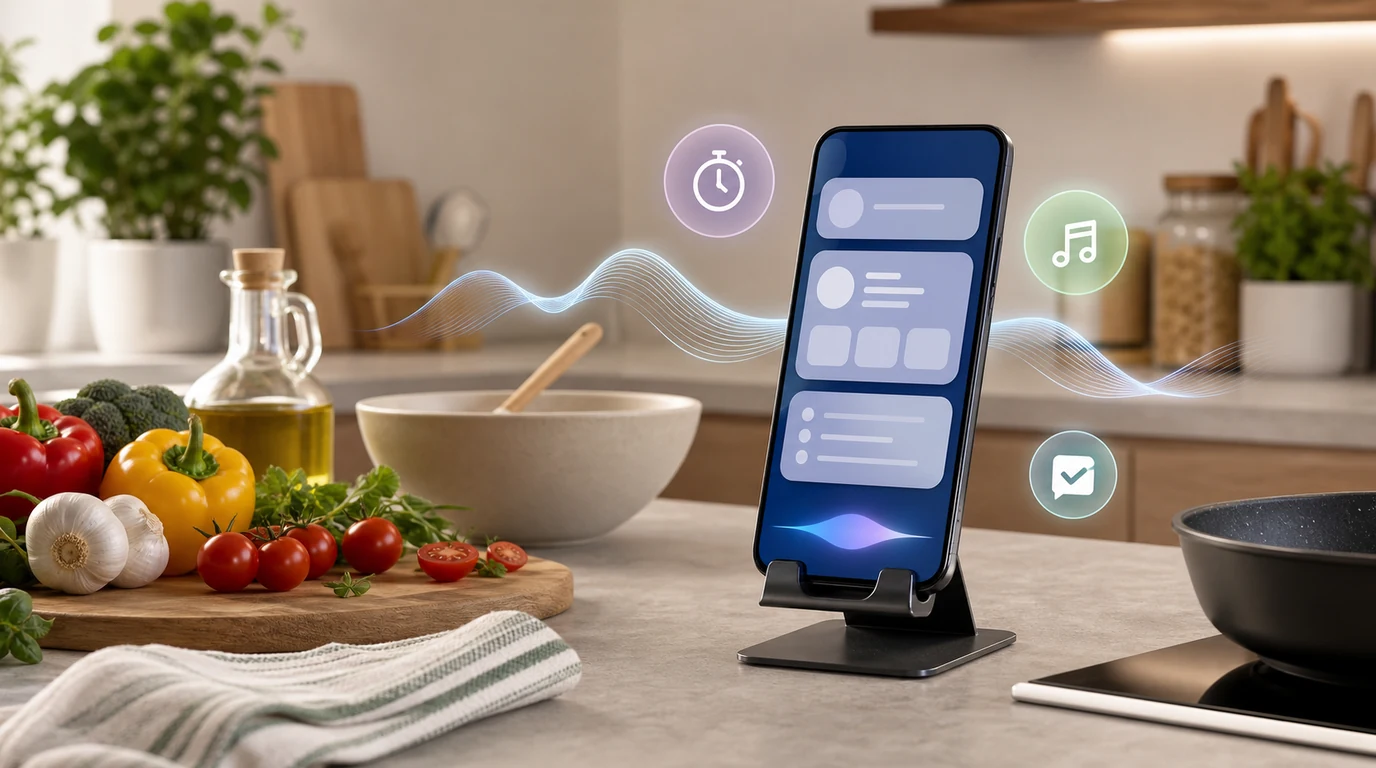
- Prepare the phone before cooking: keep it dry, visible, away from steam and raw ingredients, and avoid phone corrections while handling heat or knives.
- Use native Gemini and Clock timer routes for cooking countdowns, then verify the actual timer label and running countdown before relying on it.
- FoneClaw can help with supported Android phone actions around cooking, including reading a visible recipe screen, scrolling when supported, saving a personal grocery task, and preparing a reviewed message draft.
- A personal To-do is not a shared grocery list, text input does not send a message, and a cooking timer does not prove food is safe without the right food-safety check.
Prepare the Phone Before Cooking
Hands-free cooking on Android is useful when the phone is ready before your hands are wet, oily, or busy. Put the phone on a stable stand, keep it away from steam, spills, hot pans, flour clouds, and raw ingredients, and open the recipe or Clock app before prep starts. If you are using knives, heat, boiling water, or raw-food cleanup, finish the safe kitchen step first and correct the phone afterward.
The goal is not to make the kitchen automatic. The useful setup is a few small, checkable phone actions: a native cooking timer, recipe scrolling, one personal grocery task, and one reviewed message draft. Music controls can help too when the media app supports them, but open-ended browsing is better before the stove is active.
| Kitchen need | Best route | Result to check |
|---|---|---|
| Cooking countdown | Native Gemini or Clock timer route. | Visible timer name and running countdown. |
| Recipe position | Voice Access or supported FoneClaw screen action. | The actual current recipe step after scrolling. |
| Missing ingredient | Personal To-do Center task. | Saved item and date or Unscheduled status. |
| Household update | Reviewed message draft. | Correct adult thread, text, and sent state if sent. |
For broader setup outside the kitchen, Android Voice Control: Voice Access Setup and Fixes covers general Android voice preparation.
Check the Actual Cooking Timer
For a cooking interval, start with the native Android timer route. Google’s Gemini device assistance help describes supported Android device assistance for alarms, timers, and media controls, depending on device, app, and settings. A practical request is: “Set a pasta timer for nine minutes,” or “Set an oven timer for 18 minutes.” Then check the Clock surface: the timer should be running, the duration should match, and the label should identify the food or step.
Clock routing depends on the phone. Google lists HONOR, OnePlus, OPPO, Samsung, TECNO, and Xiaomi Clock apps as supported. On other mobile devices, if Google Clock is enabled, Gemini uses it in preference to any other clock app. Supported third-party Clock apps can set, check, update, and delete alarms and timers, but that does not make every Clock action available.
FoneClaw’s Clock support is different. FoneClaw can set an Android Clock alarm with a concrete time, repeat, and label, such as “set an alarm for 6:30 PM labeled take bread out.” That is not a countdown timer for pasta, rice, or sauce. Use the native timer route for cooking intervals and verify the countdown in the actual Clock app.
If a timer is missing, pause the risky cooking step, unlock normally if needed, open the Clock app, and verify before creating duplicates. Timer completion also does not prove food is safe. FoodSafety.gov’s four steps to food safety explains that a food thermometer is needed to determine safe internal temperature.
Keep Your Place in the Recipe
Open the recipe before cooking starts and identify the step you are on. If the screen needs to move, use a supported route such as Voice Access scrolling or a supported FoneClaw screen action, then reread the visible step after the page changes. Do not assume the phone is tracking your recipe state automatically.
Google’s Voice Access commands help describes selecting visible screen elements and scrolling. Its supported command languages include English, Spanish, German, Italian, French, Portuguese, and Japanese; Portuguese and Japanese support the top 25 commands. The app’s accessibility labels and your selected command language still matter.
FoneClaw can help when the recipe app exposes readable content and supported controls. We can open a supported app, read the accessible visible screen, and use a separate supported scroll or gesture when available. After any movement, check the screen again and confirm the actual step. Screen reading alone does not scroll, tap, keep recipe state, or turn a recipe page into an automatic guided cooking system.
If the screen is lost while the pan is active, handle the food first. When it is safe, restore the recipe page and verify the step instead of guessing from memory.
Save One Ingredient and Review One Message
Missing ingredients are perfect for quick capture. Say something specific such as “Save a to-do to buy basil,” or “Add a personal task to buy parchment paper tomorrow.” FoneClaw can save a personal actionable To-do Center item and report whether it is dated or Unscheduled. “After dinner” is vague, so it remains Unscheduled. “Tomorrow” or an exact date schedules the task on that date even without an hour.
That personal task is not a shared grocery list or a recipe notebook. If another adult needs the information, use a separate reviewed message or a real shared household list in the app your family already uses.
For a short kitchen message, open the correct adult conversation first. Then use Gboard or a supported FoneClaw text action to enter only the message content, such as “Please grab basil if you are still at the store.” Google’s Gboard voice typing help explains that microphone dictation enters words in the selected editable field. It does not choose the recipient or send.
FoneClaw can prepare text in an identified editable field when the current Android screen supports it. Text input does not press Send or Enter. If sending is separately requested and the current screen exposes a supported send control, verify the actual conversation sent state afterward. Actual approval behavior depends on Tool Approval Mode and per-tool settings, and configured online models may process supplied task context. For a fuller message workflow, Hands-Free Texting on Android and Galaxy: Summarize, Draft, Review covers recipient and send review in more detail.
If your kitchen task becomes lights, plugs, or scenes rather than phone text, Smart Home Voice Control on Android: Phone Setup and FoneClaw Workflow covers that separate household-control path. Parent logistics are covered separately in Hands-Free Android Help for Parents: Tasks, Messages, and Family Calendar.
Fix Problems Without Interrupting Safe Cooking
When a kitchen voice command fails, do not keep correcting the phone while handling heat, knives, boiling water, or raw-food cleanup. Keep extraction ventilation running as needed; do not reduce ventilation just to help the microphone. Pause music, wait for a quieter moment, or move the phone to a safer dry position when you can.
| Problem | Safer next step | Check |
|---|---|---|
| Microphone misses the command | Use a shorter request after the noisy step is done. | The captured words match the task. |
| Phone is locked | Unlock normally when your hands and food task are safe. | The needed app or field is visible. |
| Timer is missing | Open Clock and inspect running timers before adding another. | One correct timer is active. |
| Wrong recipe appears | Stop phone work, handle the food, then reopen the intended recipe. | The correct title and current step are visible. |
| Message is still a draft | Review recipient and text before a separate send action. | The actual thread shows sent status if sent. |
The current FoneClaw Features page describes supported Android task handling. In the kitchen, the useful pattern is simple: native countdowns for cooking intervals, FoneClaw-supported phone actions for visible recipe and follow-up tasks, and real-world safety checks before any phone correction.