
Best Screenshot-to-To-Do Apps for Android: Todoist, Gemini, and FoneClaw
Turn screenshots and whiteboard photos into reviewed tasks with Todoist Task Capture Assist, Gemini with Google Tasks, or FoneClaw. Compare inputs, limits, and saved results.
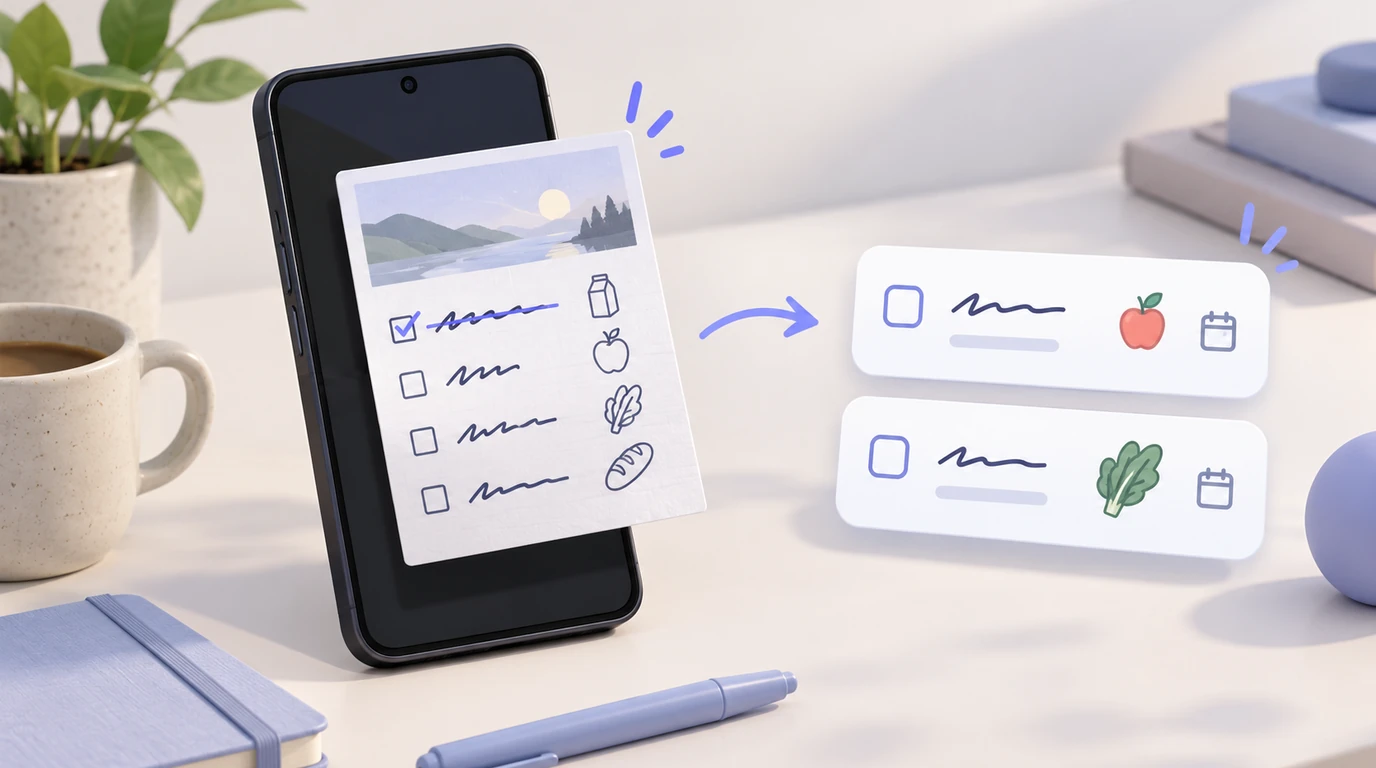
- Choose by destination: Todoist offers a native extraction preview, Gemini can write to connected Google Tasks, and FoneClaw supports reviewed personal to-dos through configured tools.
- Todoist Task Capture Assist is beta and accepts JPEG, PNG, and WebP images within its size and resolution limits. Beginner and Pro Legacy share ten monthly sessions with Ramble.
- Image analysis is not proof of task creation. Review unfinished action items, confirm the destination, and inspect actual saved records before retrying.
- Keep unclear dates unresolved. FoneClaw to-do dates are date-only, undated items stay Unscheduled, and precise-time alerts require a separately requested supported alarm or calendar action.
Choose Where the Screenshot Tasks Should Be Saved
The best screenshot-to-to-do app for Android is the one that puts reviewed tasks in the list you actually use. Choose Todoist Task Capture Assist for a native extraction preview inside Todoist, Gemini when your destination is Google Tasks, or FoneClaw when you want selected-image analysis followed by supported personal To-do tools.
Start with an existing screenshot or whiteboard photo containing readable action items. A picture of meeting notes may mix unfinished work, completed decisions, names, and background information. Extracting every line would produce a poor task list even if every word were recognized correctly.
| Route | Input and review | Saved destination | Main condition |
|---|---|---|---|
| Todoist Task Capture Assist | Attach an image and inspect the extraction preview | Todoist tasks in the intended project or section | Beta access, supported image, capture allowance, and reviewed attributes |
| Gemini with Google Tasks | Analyze the selected image, review items, then explicitly request saving | Linked Google Tasks list | Correct account, Keep Activity, and Workspace connection |
| FoneClaw | Provide a selected image to an image-capable configured model, then review before requesting creation | FoneClaw personal To-do Center | Actual image and tool support, enabled tools, permissions, and approval settings |
This is a comparison of documented routes, not a hands-on accuracy or speed ranking. The useful outcome is multiple editable task records with correct wording and dates, not merely a convincing response about the image. If the picture contains no action items, an empty task proposal is preferable to invented work.
Extract Screenshot Tasks With Todoist
Todoist's Task Capture Assist instructions describe a beta feature across platforms. On Android, use the documented sequence:
- Open Quick Add.
- Open the plus button for More actions and choose Extract tasks.
- Paste or attach the image containing the action items.
- Inspect the proposed tasks and their attributes.
- Confirm the tasks, then open the saved records to check their destination and contents.
Accepted image formats are JPEG, PNG, and WebP, with a maximum size of 10 MB and dimensions no greater than 4000 by 4000 pixels. Rotate sideways photos and crop irrelevant surroundings while keeping headings and date context. These are Todoist's limits, not shared limits for Gemini or FoneClaw.
The feature supports title, description, date and time, project, priority, section, label, deadline, duration, and assignee attributes, subject to applicable plan conditions. Check each field independently: a priority is not a deadline, a section is not an assignee, and a recognized date is not a custom reminder. Subtasks and custom reminders are unsupported. Do not assign or notify another person simply because their name appears in the image.
Beginner, the free plan, and Pro Legacy share ten sessions per month with Ramble across voice, text, files, images, and devices. A session counts only when at least one task is found. The allowance resets on the first of the month at midnight UTC. After exhaustion, wait for the reset, choose an eligible upgrade, or enter tasks manually; changing input routes does not create another allowance. Pro and Business offer unlimited sessions subject to rare rate or fair-use limits.
Todoist also documents PDF, MD, and TXT input, one file up to 10 MB. That separate document support does not establish equivalent PDF analysis in the other routes here. Task Capture Assist remains beta; help-page or changelog update dates do not establish its first launch date or identical access for every account.
Use Gemini With the Correct Google Tasks Account
Google's Gemini help for Google Tasks explicitly includes taking a photo of a list and asking to add its items to to-dos. For an ambiguous screenshot, separate that into two requests so you can correct the interpretation before anything is saved.
First, upload the relevant image using Gemini's supported attachment route, within your account's image and file-upload conditions. Ask for unfinished action items only, retaining original wording and identifying uncertain dates. For example: “List the unfinished tasks visible here. Show the source wording beside each proposed title. Do not save anything yet, and do not infer missing dates.”
Then review the proposal against the image. Correct names, negation, crossed-out lines, and ownership. Once the list is accurate, explicitly request that the selected items be added to @Google Tasks. Naming the destination matters: when several apps are connected, the last-accessed app may otherwise receive the request.
The required setup includes signing in with the intended Google account, enabling Keep Activity, and connecting Google Workspace. Check that the resulting tasks belong to that same account and the intended list. An image-understanding response alone does not prove that the connection is available or that a write succeeded.
Open the linked tasks and inspect their titles, dates, and editable details. If the connection is unavailable for your account, use manual entry or resolve the supported connection rather than repeatedly requesting creation. Where a confirmation offers a supported Undo action, you can use it; otherwise, edit the linked task list as appropriate. Do not assume universal rollback: Gemini cannot undo background actions taken through Live.
Review Selected Screenshot Content Before FoneClaw Tasks
In FoneClaw, your chosen screenshot can provide context to an image-capable configured model. The model interprets the image, while our supported Android tools handle the separately requested personal task operations. Our FoneClaw Features page describes this combination of model configuration and supported phone tools.
Before attaching an image, check the actual model's image-input and tool support. FoneClaw offers a free default model and optional BYOK configuration, but that is not a promise that every default or configured model supports this complete workflow. Tool enablement, Android permissions, and global or per-tool approval settings are separate requirements.
Select only the relevant screenshot. Providing that image does not authorize reading all Gallery content or other chat apps. Ask for a reviewable proposal containing the source wording, suggested task title, supporting details, definite date if present, and unresolved questions. Check the image yourself before choosing which items to save.
After review, explicitly request creation of the selected personal to-dos. FoneClaw supports creating, listing, searching, updating, completing, and deleting these records. A task with a definite date can use that date; missing or vague timing remains Unscheduled. The due-date field is date-only. If the image says “call at 3 PM,” preserving those words in the details does not create a 3 PM alert. Request a separate supported alarm or calendar action if that is the outcome you want.
Inspect the actual To-do Center records after creation. If the reply is uncertain, list or search existing items before trying again. This route does not provide native Todoist or TickTick synchronization, nor does selected-image support establish an arbitrary PDF semantic reader. Online model processing may transmit supplied image context to the chosen provider; it is not a blanket offline workflow.
Compare the Same Fictional Whiteboard
Use this fictional worksheet to decide what should survive extraction. It is a proposed reader exercise, not output obtained from any app. Imagine a clear photo of a planning board with the following four lines:
| Source wording | Candidate task | Date decision | Review outcome |
|---|---|---|---|
| Send draft to Maya by 16 October 2026 | Send draft to Maya | 16 October 2026 | Keep as an unfinished task; Maya is the recipient, not automatically the assignee |
| Buy markers | Buy markers | No date supplied | Keep undated; in FoneClaw, leave Unscheduled |
| DONE: Book room | None | Not applicable | Exclude from new unfinished tasks |
| Wi-Fi network: WorkshopGuest | None | Not applicable | Exclude background information |
Prepare your own nonsensitive copy and first request a preview or extraction only. Compare the proposal with these review decisions, correct discrepancies, then confirm only the two unfinished action items. In Todoist, inspect the actual project or section; in Google Tasks, inspect the linked account and list; in FoneClaw, inspect the personal To-do Center.
Keep relative dates out of the first exercise. If another photo says “Friday,” its meaning depends on when the original note was written, not necessarily when you upload it. Ask for clarification or supply a verified absolute date. A screenshot's capture date may differ from the date of the message or whiteboard it depicts.
Likewise, “Maya will send the draft” is not automatically your task. Confirm responsibility before creating a personal item, assigning work, or notifying anyone. Judge the result by faithful source interpretation and saved records, not by how many tasks an app proposes.
Fix Unclear Inputs and Uncertain Saves
Identify whether the failure concerns the image, interpretation, account, or save operation before retrying. Repeating the entire request can create duplicates without resolving the original problem.
| Problem | Next check |
|---|---|
| Blurred or difficult handwriting | Use a clearer photo, rotate or crop it, or manually supply uncertain wording. Do not accept guessed names or dates. |
| Long or oversized screenshot | Check that provider's limits. Split into meaningful regions while retaining relevant headings and date context. |
| No tasks proposed | Confirm that unfinished action items actually exist. Labels, completed notes, and background facts need not become tasks. |
| Wrong date | Return to the original note or message context, then provide a confirmed absolute date or leave it undated. |
| Todoist capture allowance exhausted | Use manual entry, wait for the UTC reset, or consider an eligible upgrade. Ramble shares the allowance. |
| Helpful answer but no saved record | Check the chosen destination, account, connection or enabled tools, and whether creation was requested. |
| Only some tasks saved | Inspect existing records, identify missing items, and request only those rather than repeating the whole batch. |
If a wrong item already exists, edit that record where supported instead of creating a replacement blindly. Check its identity before deleting it, especially in a shared list. Clean up only your practice records when evaluating a route. An uncertain reply is not evidence that nothing happened, and a failed later step does not establish that earlier saves were rolled back.
Choose a Route for Your Real List
Choose Todoist when its native extraction preview and project structure match your list. Choose Gemini when the intended destination is Google Tasks and the required account connection is available. Choose FoneClaw when reviewed image content should become personal to-dos through your configured model and supported tools.
Before uploading, crop unrelated chat messages, contact details, account numbers, and private background material. Keep enough context to interpret dates and ownership correctly. Review provider processing conditions; attaching a local screenshot does not mean analysis stays on the phone.
Different inputs call for different guides. For spoken capture, see Best Voice To-Do List Apps for Android: Todoist, TickTick, Gemini, or FoneClaw? For translating rather than saving work, use Best Screenshot Translator Apps for Android: Four Ways to Translate Images.
To revisit the source image, Android AI Image Context: Reanalyze the Same Screenshot or Photo covers repeated analysis. A single dated event belongs in Add an Event Poster to Android Calendar. For managing reviewed notes and subsequent tasks, AI Voice Memos for Android: Notes and Reminders explains that ongoing workflow.