
Android App Photos Not Showing? Check Selected Access
Find out why one Android app cannot see a photo. Check selected-photo access, reselect the intended image and verify it without clearing app data.
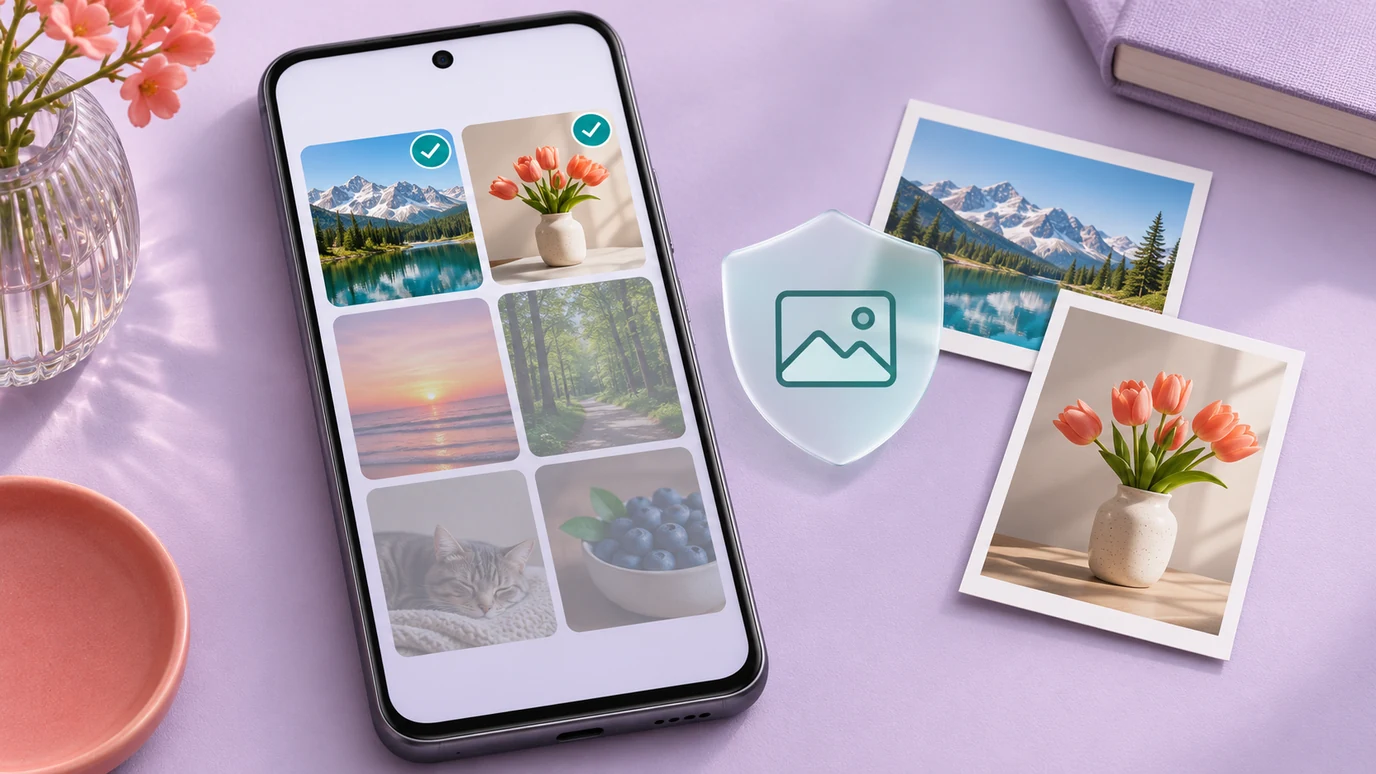
- First open the exact photo in a trusted gallery or file source. If it exists there but not in the receiving app, investigate app access rather than treating it as a deleted file.
- Android Selected Photos Access and the system photo picker are different routes. Either can limit an app to particular images without granting access to your entire library.
- Reselect one harmless image through the receiving app, open it and check its identity. Earlier permission or a visible thumbnail does not prove the app can still read the photo.
- Camera capture, saving, selecting, opening and analysis are separate steps. FoneClaw supports deliberate photo selection and supported capture workflows under applicable permissions, not unrestricted gallery access or automatic sharing.
Locate the Photo Before Changing Permissions
When Android app photos are not showing, start with the particular image and the app that cannot see it. A photo missing from an attachment screen is not necessarily missing from your phone. The receiving app may have access to only a few pictures, or it may no longer be able to reopen an earlier selection.
Open the exact image in a trusted gallery or file source. Check its contents, not just a familiar thumbnail. Identify the app you want to use it in and the action that fails: finding, selecting, opening or reopening the image.
| What you observe | What to distinguish | Narrow next check |
|---|---|---|
| Only a few photos appear | Limited selection versus the whole library | Look for the app's supported add-photo or reselection flow |
| A new camera photo is absent | Capture and saving versus access in another app | Confirm the saved image exists before changing photo permissions |
| A previously selected image no longer opens | Past access versus current access | Reselect that same image and try opening it again |
| A cloud thumbnail appears | Thumbnail visibility versus readable image availability | Try opening it in its source app; do not assume a download succeeded |
| The camera ran, but no saved image is confirmed | Capture activity versus a saved result | Check the capture result and save status first |
If the only copy cannot be located or opened in its source, stop this access diagnostic. Do not clear app data or reset permissions across the phone. This guide addresses access to an existing image, not recovery of a missing file.
Selected Photos Access and the Photo Picker Are Different
Android 14 introduced Selected Photos Access, which lets a user allow access to specific photos and videos instead of the full library. What you see depends on the Android version, the app's target version and how it handles media selection.
An app using limited library access may show the pictures you previously allowed while omitting another image you now want. That is a reason to inspect or update the selection, not proof that the omitted photo was deleted.
The Android system photo picker is a separate route. You deliberately choose an item, and the app receives access through a reference to that selected media, called a URI. Using this picker does not grant the app your entire photo library.
This explains why an app may let you attach one photo even when it does not have broad photo-library permission. Conversely, a photo you selected earlier may need to be selected again if the app no longer has usable access to it.
Look at the receiving app's actual controls. An attachment picker, an in-app gallery and a permission-selection screen can look similar while serving different purposes. There is no single Photos switch that makes every app see every image.
For a broader review of assistant access beyond this one-photo problem, Android 17 AI Assistant Privacy Permissions: What Changed and What to Audit covers the wider permission questions. Keep the immediate check focused on the image you want to use.
Reselect One Photo With the Access It Needs
Start inside the receiving app so the selection goes through a route it supports. Use one harmless image rather than granting a larger selection while troubleshooting. A saved photo of a mug or blank note is enough.
- Confirm the source image. Open it in your trusted gallery or file source and note a distinguishing detail.
- Return to the receiving app. Open its supported attachment, add-photo or photo-selection control.
- Select that one image. If a confirmation screen appears, check the selected preview before completing the choice.
- Open the image in the receiving app. Verify that the actual content loads, rather than accepting a thumbnail as the final result.
- Record the outcome. Note whether the image is absent from the picker, fails after selection or opens correctly.
If the app uses photo permissions, you can also inspect a path such as Settings > Apps > the target app > Permissions > Photos and videos. Names and available choices vary by phone and app. Google's Android app-permission guide explains how to inspect permissions.
Where a limited-selection option is available, check whether the intended image is included. Do not make full-library access the default fix for a one-photo task. If the app uses the system picker instead, return to that supported selection flow rather than searching for a permission option it may not need.
If reselection works, you have confirmed access for this attempt. You have not established that the app will retain it indefinitely or that every other photo is accessible.
Check Whether Access Has Changed
A photo that opened yesterday may fail today even though the original remains intact. Temporary access can expire, a selected set can change, and Android can remove permissions from unused apps. Earlier approval is not proof of current access.
Check the target app's present permission state and repeat its supported selection flow for the same image. Then reopen the image in the app. If it works immediately but fails after you later return, record that difference; it helps distinguish an initial selection failure from an access-retention problem.
Do not assume every app keeps a selected image's URI access across restarts. The system picker provides a way to select media, but the receiving app's handling of that access still matters.
Make one change at a time. Reselecting the image and verifying it gives you a clearer result than changing several permissions, clearing data and reopening the app together. If the first narrow check succeeds, stop there rather than widening access unnecessarily.
If you find similar permission changes across several apps, a broader review may be useful after this photo check. Android Phone Health Check AI: Battery, Permissions, and Alerts covers that wider audit. It is a separate task from making one intended image readable.
Separate Camera Capture, Saving and Photo Access
For a newly taken photo, follow the sequence instead of treating camera permission as the answer to every failure: camera access, capture, saving, photo selection and reading. Each step needs its own observable result.
A camera preview confirms that the camera opened. It does not establish that the shutter fired. A capture response is also different from confirming a saved image, and another app's ability to select that image is a further step.
In supported direct-install editions, our FoneClaw camera capture uses the system camera. App-saved images remain selectable with restricted gallery access; you do not need to treat restricted access as a reason to expose every picture. This does not give FoneClaw authority to browse the whole gallery.
Specify the photo you want to use, and request opening it only when you want that action. If you want analysis afterward, a compatible image-capable model is a separate requirement. Camera capture alone does not establish that analysis, upload or sharing has succeeded.
Our FoneClaw Features page describes supported capabilities. The configured model, enabled Android tools, applicable permissions and approval settings govern the workflow. Do not assume identical support across editions or that image processing is always offline.
If the photo is confirmed saved but absent from the receiving app, return to that app's selection flow. If saving itself is unconfirmed, investigate that stage before changing library access. Broad photo permission cannot prove that an image was saved in the first place.
Follow One Harmless Image Through the App
Use this proposed exercise to make the failure reproducible. It is not a report of a test we performed or a promise that reselection will repair every app.
Choose an already-saved photo of a mug beside a blank note. Open it in your trusted source and record enough identity information to recognize it: the filename if shown, the visible arrangement and its location in the source. Keep personal documents out of the example.
| Stage | What you do | Observable result |
|---|---|---|
| Source | Open the mug photo | Full image opens, or source availability remains unconfirmed |
| Selection | Choose only that photo through the target app | The intended image appears selected, or selection fails |
| Opening | Open its attachment or preview in the app | The mug and note are visible, or the image fails to load |
| Optional analysis | Ask a specific question about that selected image | An answer is returned, or analysis is unavailable or fails |
| Later access | Return later and reopen the same item | It still opens, requires reselection or remains inaccessible |
For optional analysis in FoneClaw, you might ask: In the photo I selected, is the blank note beside the mug? Compare the answer with the image you can see. A plausible answer alone does not prove that a file was uploaded or sent to another person; those are separate outcomes requiring their own confirmation.
To continue discussing this exact picture rather than accidentally switching context, see Android AI Image Context: Reanalyze the Same Screenshot or Photo. Leave any stage you cannot observe marked unconfirmed.
Use a Non-Destructive Fallback or Report the Failure
If the source photo opens but the target app still cannot read it after deliberate reselection, preserve the original and narrow the report. Avoid clearing storage, reinstalling or resetting permissions as default next steps.
Where the receiving app supports a system file picker as an alternative, try selecting the same image through that route. Otherwise, use a supported manual selection or opening action. An alternative route is another check, not a guaranteed repair or a reason to bypass access restrictions.
Check whether an update is available for the target app, particularly when the failure persists with a harmless image through its supported flow. After updating, repeat the same small example so you can compare the failing stage without changing the subject.
A useful support report includes the phone model, Android version, target app version, selection route, current access choice and the exact point of failure. State whether the image opens in its source, whether reselection works temporarily and whether reopening later fails. Include error wording or a non-sensitive screenshot when appropriate, not a private gallery dump.
The stopping point is clear: either the intended photo opens in the receiving app, or you have a reproducible access failure to report. Neither outcome requires calling the photo deleted, claiming a recovery or granting more of the library than the task needs.