
Android App Update Failed? Verify, Retry, and Delete the APK Safely
Find where an Android app update stopped, check the installed app before retrying, and learn when deleting the downloaded APK is safe.
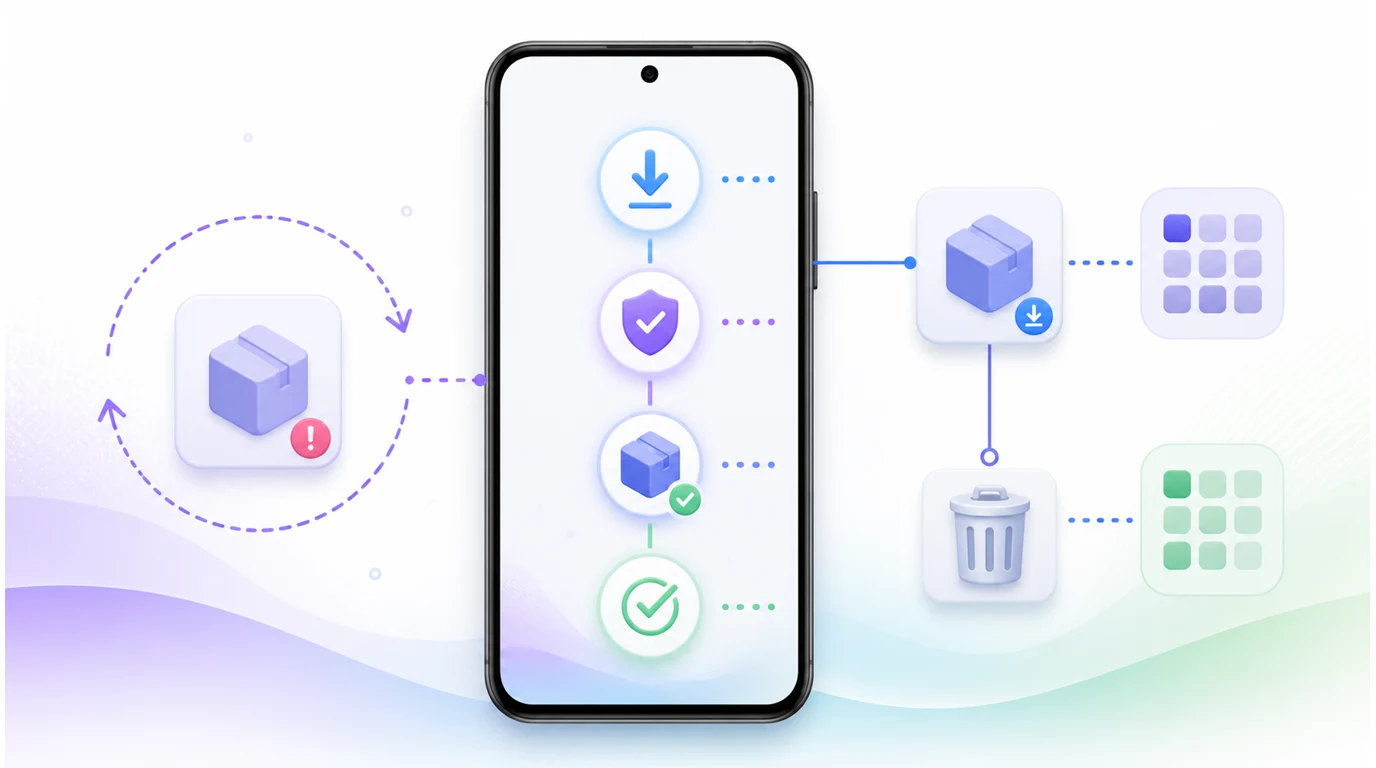
- A completed download is not an installed update; identify the visible state before choosing the next action.
- Check the installed edition, package identity, and official update channel before replacing an app.
- Retry a failed step only after addressing its cause, then verify the installed version and open the app.
- After confirming installation, you can delete the downloaded APK without uninstalling the app or rolling back the update.
If an Android app update failed, first find out whether the failure happened during download, package checking, system confirmation, or installation. Those states call for different responses. A completed download only means the installer file arrived; it does not prove that Android replaced the installed app.
Identify Where the Update Stopped
Look at the current message before tapping Retry or deleting a file. Android's PackageInstaller documentation distinguishes a request waiting for user action from terminal success and from failures such as a conflict, invalid package, insufficient storage, or timeout. You do not need to decode those status names to act: use the message shown by the installer or updater and check whether the installed app changed.
| What you see | Next action | What confirms progress |
|---|---|---|
| Download incomplete or interrupted | Check the connection and available storage before resuming or obtaining one clean file. | The complete package reaches the next check. |
| Package being checked | Wait for a ready or failed result. | Android offers an installation step; the app is not updated yet. |
| System confirmation pending | Review the named app and respond to the Android prompt. | The installer reports success or a specific failure. |
| Installer reports success | Check the installed version and open the app. | The expected edition launches with essential app state available. |
| Installer reports failure | Address the stated cause before another attempt. | A later attempt completes and the installed app passes the same checks. |
If the confirmation screen disappeared without a clear result, inspect the installed app before starting over. A closed prompt is not evidence of success.
Check the Edition and Installed App
Before replacing anything, identify the app currently installed, its version, and where it came from. FoneClaw's direct Full APK and Google Play Lite edition are different distribution editions, not interchangeable update files. An app name or icon alone is not enough to establish that a downloaded package is an update for the installed edition.
Check the app's details in Android Settings and compare them with the proposed update's official channel. Android also evaluates package identity, signing compatibility, and version rules when accepting an update. If the installer reports a package or signing conflict, stop repeating the same attempt and confirm the intended edition and source with the publisher. Do not uninstall the working app merely to get past a conflict: uninstalling is a separate action that can remove local data, and a fresh installation is not a guaranteed migration path.
For the fuller choice between distribution channels, Google Play vs Direct APK for Android AI Agents: How to Choose and Verify explains what to check before selecting a package. If there is no installed app yet, Can an AI Agent Install Android Apps? A Google Play Example covers first installation rather than update troubleshooting.
Understand Package and Developer Verification
Three checks are easy to confuse. A completed download tells you the file arrived. A package check or Android installer decision concerns whether that file can be installed as the intended app. Developer verification addresses the identity of the developer behind an app in the rollout described by Android. Passing one check does not prove the others have succeeded.
Android's developer verification guidance identifies a September 30, 2026 regional milestone for certified Android 7 and newer devices in Brazil, Indonesia, Singapore, and Thailand through participating stores: Google Play, HONOR, OPPO, Galaxy Store, PalmStore, V-Appstore, and GetApps. The announced plan expands globally in 2027. That scope is not a global ban on APK files, and it does not make developer verification the cause of every failed update.
If the phone displays a verification or distribution restriction, follow its specific instruction and the official source for that edition. Android's developer verification help explains the identity requirement. A generic retry, an extra permission grant, or a different copy of an incompatible package should not be treated as a workaround for an unresolved restriction.
Fix the Failed Step Before Retrying
Start with checks that do not change the installed app. Confirm network connectivity and available storage. If a transfer was interrupted or the downloaded file failed its check, obtain a fresh copy from the intended official channel. Keep track of which file belongs to the current attempt rather than accumulating similarly named APKs.
Different failures have different remedies. A storage failure calls for freeing space; a pending system prompt calls for a decision in Android's installer. A canceled prompt can be reopened when you intend to proceed. A package conflict, incompatible edition, signing mismatch, or version-rule problem calls for checking the source and installed app, not repeatedly approving the same package. Retry once after correcting the identified condition, then keep the failure message if the same problem returns.
After Android reports success, inspect the installed version in the app's Android settings, open the app, and confirm an essential account or local state is still available. If the expected version is absent, refresh the app details and recheck which edition you updated before attempting another install. A progress bar, approval prompt, or updater message is not a substitute for this installed-result check.
Delete the Installer After Checking the Result
Can you delete an APK after installing it? Yes. Once the expected app version is installed and opens normally, the downloaded APK is an installer file you can remove to reclaim storage. Deleting that file does not uninstall the application, erase its app data, or roll back the update.
Keep the file temporarily if installation is still pending or the result is uncertain, especially when it is the only complete copy for a recoverable retry. You can also delete a file you have positively identified as incomplete, obsolete, or meant for the wrong edition when you are abandoning that attempt. Select the downloaded file or an updater action that explicitly targets the package, not Android's Uninstall control for the installed app.
APK cleanup is unrelated to rolling back an Android system update. It also does not restore an earlier app version. If you need to change the installed app rather than remove its downloaded installer, treat that as a separate decision with its own data and compatibility consequences.
Use FoneClaw's Status and Approval Controls
FoneClaw's update experience separates download, package checking, installation, retry, and downloaded-package deletion, with clearer failure messages and responses when Android needs user approval. Those states help you decide whether to wait, respond to a system prompt, correct a failure, or clean up a file. They do not turn a completed download into a silent app upgrade.
Our supported device-network and storage checks can help identify prerequisites without changing the installation. The Google Play install helper stops when it reaches an Update action, a paid or subscription step, or an ambiguous screen; the user continues through the actual store or system flow. FoneClaw's configured model, enabled tools, Android permissions, and current approval policy govern any supported phone action. The FoneClaw Features page describes those controls.
For a direct-package update, follow the updater and Android installer to a definite result. Then confirm the installed edition and version, open the app, and only afterward delete the downloaded APK. If any step fails, keep the visible reason and return to that step rather than uninstalling a working app or assuming another retry will repair it.