
Android Voice Input vs Dictation vs AI Transcription: Four Outputs
Choose between spoken phone commands, literal dictation, AI-rewritten text, and saved-recording transcription by the result you need to review.
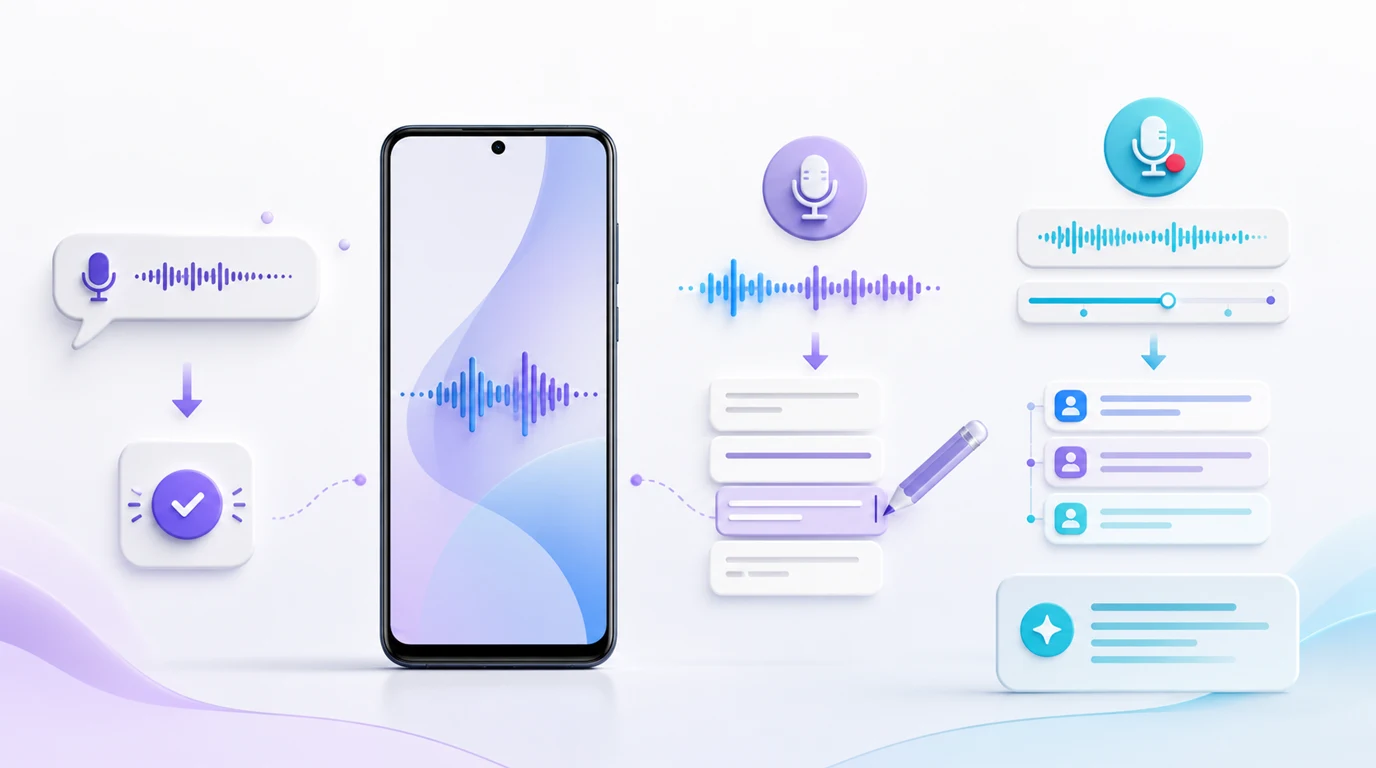
- Use a voice command for a supported phone action; use keyboard dictation when you need editable words in a focused field.
- AI rewrite produces polished draft text, not a verbatim record, so check names, quantities, dates, negations, and promises.
- Save audio when the original wording matters, then compare any transcript or summary with the recording.
- In FoneClaw, capturing and reviewing a voice note is separate from requesting an authorized Android memo or calendar action.
Speech can leave four very different things behind: a changed phone state, literal editable text, AI-rewritten draft text, or a saved recording with a transcript. Choose the output before choosing the microphone button. Otherwise a sentence meant for a message may be treated as a command, or a polished summary may be mistaken for an exact record.
Choose by What Should Remain After Speaking
| Desired result | Starting mode | What to verify |
|---|---|---|
| The phone performs a supported action. | Voice command or phone agent. | The target app, setting, or saved item actually changed. |
| Your words appear as an editable draft. | Keyboard dictation. | The focused field and literal wording are correct before submission. |
| Your spoken thoughts become cleaner prose. | AI-assisted rewrite dictation. | The new wording preserves the facts and intended commitment. |
| The source conversation remains available. | Saved recording and transcription. | The audio was saved and the transcript matches key passages. |
The modes can feed one another, but each transition changes what must be checked. A transcript can suggest an action item; it does not create a reminder. Dictated or rewritten text in a message composer is still a draft until someone submits it. A voice command needs confirmation in the destination, not just a spoken acknowledgment.
Separate Phone Commands From Dictation
“Open Maps and prepare directions to the airport” asks the phone to act. The destination, app, and resulting route matter. If the request is ambiguous, identify the intended airport before opening directions. When the action finishes, inspect the map screen or other target state.
“Write: remind Maya about the invoice” asks for words in a text field. Google's Gboard voice-typing guidance describes dictation from the keyboard microphone into a focused field. Focus is part of the task: correct recognition in the wrong conversation is still a wrong result. Check the recipient, text, and punctuation before sending.
Android Voice Access can also combine spoken screen commands with text entry, but those remain distinct operations. For the detailed hands-free setup and command path, Android Voice Control: Voice Access Setup and Fixes covers visible-screen control. A keyboard draft does not become a sent message simply because the words were recognized.
Understand What AI Cleanup Can Change
AI-assisted rewrite dictation is a fourth output, not a more accurate name for literal dictation. It may remove filler, reorganize a sentence, format a list, or change the tone. That is useful for drafting, but it can also alter emphasis or turn an uncertain statement into a firm promise. Review the result as edited prose rather than as a transcript.
Google's Gboard Rambler guidance describes cleanup and rewriting on eligible Pixel 11-series devices with current, default Gboard and microphone access. Basic offline cleanup is limited; advanced rewrites and complex voice edits require internet. Language support is defined by Google's list, not by the language of this article or by Android in general. Rambler is an example of this output mode, not a guarantee that the feature appears on every phone or for every language.
After any rewrite, check proper names, quantities, dates, negatives such as “do not,” and statements about who will do something. If exact wording is required, use literal dictation or preserve source audio rather than treating polished text as a faithful quotation.
Keep Audio When Exact Wording Matters
A recording is the better starting point for a meeting, interview, lecture, or detailed voice note whose original wording may need to be revisited. The audio is the source; a transcript and summary are derived views. Confirm the recording was saved and can be played before relying on either text output. Listen again around a disputed name, number, or decision.
Google's Pixel Recorder documentation describes audio and transcript management on supported devices. Availability and processing routes depend on the device and feature. A long recording also raises storage, retention, sharing, and participant-consent questions that a short dictated sentence may not. Decide who may hear the file and when it can be deleted before circulating a generated summary.
For choosing a recording app and working through longer files, Best Google Recorder Alternatives for Android Without a Pixel owns the detailed comparison. Here, the deciding question is simpler: will you need to verify the exact source later? If so, keep the audio until important transcript details have been checked.
Review Content Before Changing Modes
Consider a fictional spoken note: “Tell Maya we need 12 chairs, not 21. Move the review from October 8 to October 10, but do not book the room. I will confirm by Friday.” A rewrite might make that easier to read, but the review must preserve the name, both quantities, the old and new dates, the instruction not to book, and who promised to confirm. This is a reader check, not an example of output observed from a product.
Before using the text, compare three things: what was said, what the current draft means, and what action you intend next. If the draft will be sent, inspect its recipient and leave sending as a separate decision. If it will become a calendar event, confirm the actual date, time, and target calendar first. If the wording is disputed, return to the recording or literal notes.
The same discipline applies to summaries. “Discussed booking the room” is not permission to book it. An extracted action item should stay proposed until a person identifies its owner, target, and timing.
Turn Reviewed Content Into a Separate Task
FoneClaw offers voice task input for supported Android requests and a separate Quick Settings route for capturing a voice note. A captured note can be reviewed through its transcript and summary before follow-up. Recording speech, recognizing it, and carrying out an Android action are different steps; a voice note does not automatically create a memo, event, or message.
When the reviewed content does call for a phone task, make a new, explicit request. Our configured model interprets the goal, and enabled Android tools act under the relevant permissions and approval policy. Check the resulting memo, calendar item, or device state in its destination. FoneClaw is not a universal keyboard that inserts or sends dictated text in every app. Online transcription or model processing may use a network route and receive selected context; phone-side tool execution alone does not make the whole workflow offline.
Our FoneClaw Features page describes the available voice and phone-action controls. For the distinction between a Tool, a saved Workflow, and a Shortcut after a request has been reviewed, see FoneClaw Tools, Plugins, Skills, Workflows, and Shortcuts Explained.