
Gemini on Android: Features, Live, and Phone Actions
Choose the right Gemini Android feature for conversation, Guided Vision, connected actions, or Workspace voice, then check availability and the actual saved result.
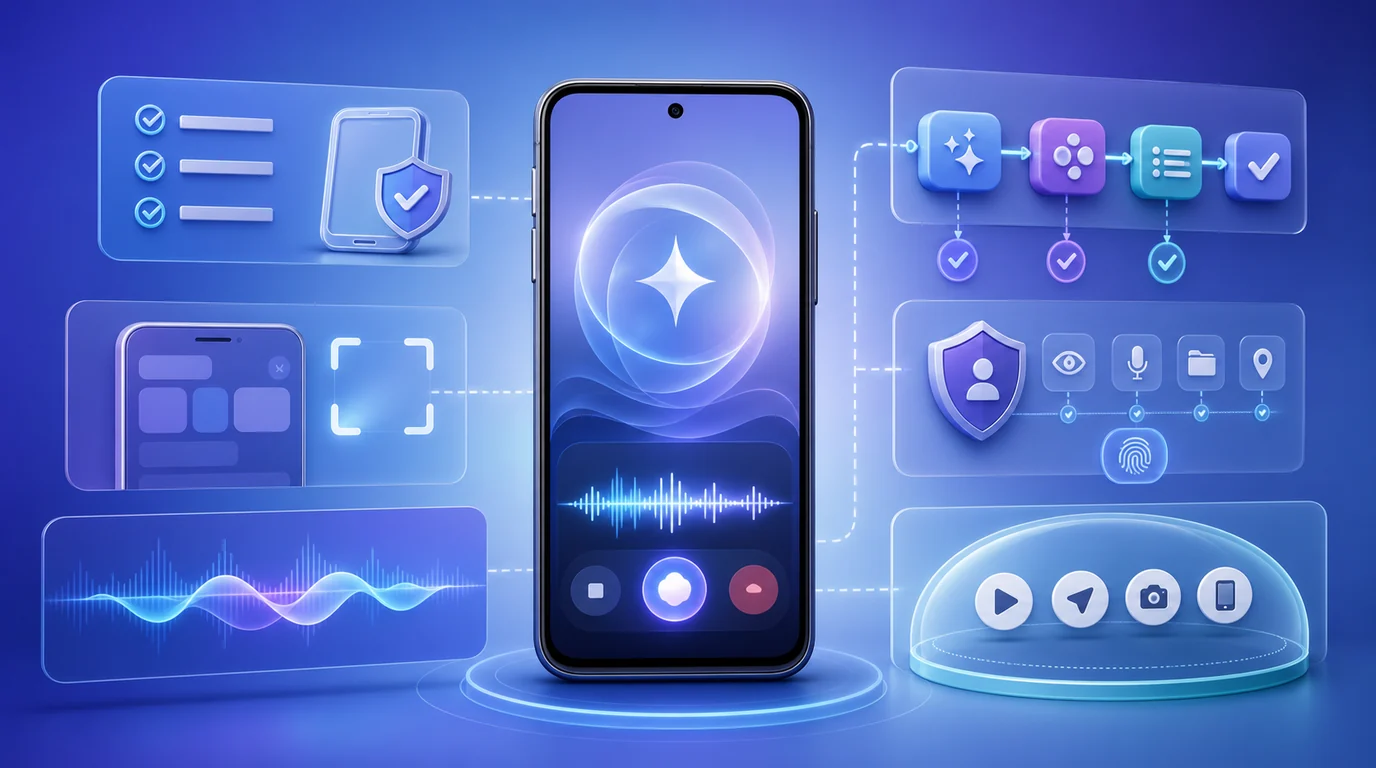
- Choose by the result: the Gemini app for questions and drafts, Live for conversation and visual context, connected apps for supported actions, and Workspace voice for work inside Gmail, Keep, or Docs.
- Guided Vision adds spoken camera descriptions and reframing prompts in eligible Gemini Live setups. It is visual assistance, not navigation, obstacle detection, or a mobility aid.
- Base app access does not guarantee every feature. Live, Workspace voice, Gemini Intelligence, and announced models each have separate account, device, language, plan, or rollout conditions.
- Verify results in their owning app. For a separate FoneClaw follow-up, review selected-image text before saving a personal To-do, and leave it Unscheduled unless you supply a definite date.
Choose the Gemini Entry for Your Task
Gemini Android features are easier to choose when you start with the finished result. Use the Gemini app for questions, drafting, rewriting, and selected image or file input. Use Live to talk through a situation with optional visual context. For a saved note, calendar item, or document, identify the connected service or owning app before making the request.
| Your task | Starting point | Completion check |
|---|---|---|
| Ask, draft, or explain | Gemini app | Review the answer or proposed text |
| Discuss a camera view or screen | Gemini Live; Guided Vision where available | Check the description against the source |
| Create a supported connected item | Eligible connected-app action | Inspect the destination and account |
| Search mail or create notes and documents by voice | Gmail, Keep, or Docs voice entry | Review the source or saved artifact |
| Perform an eligible multi-step app task | Gemini Intelligence feature | Watch progress and verify final state |
| Work on a desktop | Gemini for Windows | Inspect the desktop result |
Base app access is only the starting point. Account, language, region, device, plan, administrator settings, and rollout can affect individual features. For compatibility across product surfaces, Gemini Intelligence Supported Devices: Phones, App, Chrome, Wear OS, and FoneClaw helps you check the relevant requirements.
Use Live, Visual Context, and Guided Vision
Gemini Live provides real-time conversation, interruption, and eligible camera or screen-sharing entries. Choose camera context for a physical object and screen context for a visible page or app. Google’s Gemini Live help explains the controls: muting the microphone does not necessarily stop visual sharing or an ongoing answer. Hold stops screen sharing, which must be restarted when needed; End exits the session.
A proposed first task is to share a non-sensitive settings page and ask what one visible option means. Check that the explanation refers to the actual label. Explanation is the completion point; changing the setting is a separate decision. Avoid sharing unrelated messages, account details, or other private information.
For spoken camera descriptions, Google’s Guided Vision announcement documents Android 9 or later in Gemini Live-supported regions and languages. In Gemini, open your profile settings, enable Use Guided Vision in Live, then start Live and share the camera. It provides audio descriptions and prompts to improve framing. Eligible setups also offer an entry under Android Accessibility, Vision assistance, Guided Vision; TalkBack users can access it through the three-finger menu.
For example, show a printed household label and ask about one line. Follow a reframing prompt, then compare the answer with the label or seek human help if a name or number remains uncertain. Do not treat a repeated answer as independent confirmation.
Guided Vision is not a medical device or mobility aid and is not intended for navigation, safe travel, or obstacle detection. It does not replace a white cane. For choosing among live descriptions, targeted reading modes, and picture-based assistance, Gemini Guided Vision vs Lookout vs Be My Eyes on Android provides the focused comparison.
Before changing from conversation to a saved action, identify its destination. End visual sharing when it is no longer needed, then check the resulting item separately rather than assuming a description also created a note.
Find Where the Action Finishes
A calendar item belongs in the intended calendar; a note belongs in the service that saves it. A generated draft is not a sent message. Decide which account and destination should hold the result before asking Gemini to act.
Live supports selected connected-app actions subject to account support and rollout. Its help limits work and school connected-app access to Calendar, Keep, and Tasks with administrator enablement. Check those conditions rather than assuming a personal-account example applies to a managed account. For background actions, inspect and correct the result in the destination app; Live itself does not currently provide an undo route for those actions.
A bounded request might be to create one clearly titled note containing reviewed text. Open the intended note service afterward and check the title, content, and account. If the item is absent, first check the account and connection. If it exists with incorrect content, correct that record rather than creating another copy.
Gemini Intelligence is another layer. Google’s Android announcement describes eligible multi-step app tasks with visible progress, final confirmation, and phased device expansion. Its Samsung foldables update describes additional device and selected-app coverage. Confirm that the feature actually appears on your device; installing Gemini does not establish access to every automation.
Model access is separate again. The Gemini 4 Argon announcement describes phased trusted-tester access and planned paid API and AI Ultra expansion. It does not prove that the model is universally available in the Gemini app, Live, or an API account. Use the feature and model selections actually offered to you.
Find Gmail, Keep, and Docs Voice Entries
Google’s Workspace voice announcement describes Gmail Live for conversational inbox search, Keep voice for organizing spoken thoughts, and Docs voice for planning and drafting. These are separate in-app workflows, not simply renamed Gemini Live sessions.
For Gmail, begin in the eligible inbox voice entry and ask a focused question about mail. Inspect the cited message, account, sender, and latest instruction before acting on an answer. A summary may help locate information, but the original email remains the source. Finding a message does not send a reply.
The launch announcement described Gmail and Keep access for AI Plus, Pro, and Ultra, and Docs for Pro and Ultra, with business availability to follow. Use current help conditions when choosing a plan or troubleshooting an absent control.
Google’s Keep voice help lists AI Pro, AI Ultra, and Workspace Experiments rather than guaranteeing every Plus account. Talk through the note, review the organized wording, make supported edits, and save with Done. Reopen the note to check that the intended content was preserved.
The Docs voice help describes an English-only workflow on Android and iOS for eligible plans or Workspace Experiments. Start with Create with voice, review the plan, choose Next or say Show me the draft, make edits, and finish with Done. Use the supported English workflow rather than translating a voice instruction into an unsupported language.
Review facts, names, and any selected sources before accepting the document. Then check the saved artifact in Docs. Generating or saving it does not share or send it; those require separate decisions. Keep each completion point clear: source found, note reviewed, draft generated, artifact saved, and content shared are different outcomes.
Check the Exact Feature’s Availability
Google’s Gemini mobile availability help lists Android 9 or later and at least 2 GB of RAM for the base app, excluding Android Go and Android Work Profile. Account, language, and region conditions still apply. Base eligibility does not guarantee Live, Workspace voice, or Gemini Intelligence automation; check the exact feature’s rules, including any age requirement.
If an entry is missing, first open the owning app directly and confirm the signed-in account. Then check the app version, feature-specific language, region, plan, administrator setting, and device eligibility. A permission can unblock a supported input, but cannot create an unavailable account feature.
| Missing entry | Useful next check |
|---|---|
| Live or Guided Vision | Check Live availability and the relevant settings |
| Gmail, Keep, or Docs voice | Check that app’s current plan and language requirements |
| Multi-step automation | Check the supported device and actual feature entry |
| Headphone activation | Review Gemini With Headphones: Locked-Phone Use and Activation Controls |
| Home-screen widget | Follow Gemini Widget on Android: Setup, Shortcuts, and Missing Widget Fixes |
| Scheduled result | Use Gemini Scheduled Actions Not Working on Android: 8 Checks |
Windows is a separate surface. Google’s Windows app announcement describes Windows 10 and 11, an Alt+Space entry, writing help, and Google app context. It does not establish remote Android control.
Use a supported available route while resolving eligibility. Avoid factory resets, region workarounds, or broad account changes merely because one feature is absent.
Save One Reviewed FoneClaw Follow-Up
If your next step is a personal Android follow-up, FoneClaw provides a separate supported workflow. Deliberately attach a selected photo, ask a compatible vision model to read the relevant information, and review the text before requesting a saved item. Selected large photos are optimized and rotated when needed; this chosen-image route is different from continuous Live camera assistance.
For example, attach a package label and check the product name before asking us to save Check whether replacement filters are available for this model as a personal To-do. Keep uncertain label text out of the final wording until you verify it.
If you provide no date, leave the item Unscheduled. A vague phrase such as soon should not become an invented deadline. Supply an explicit, anchored date if you want a dated item, then inspect the saved wording and date category.
You can use our free default model or configure a compatible endpoint. Provider presets and image/tool support controls configure model capability, not device permission. The selected model interprets and plans; enabled supported Android tools execute under Android permissions and actual global and per-tool approval settings. Pending approval or permission is not completion.
An online model may process supplied context, so omit unnecessary personal information. Our FoneClaw Features page explains supported capabilities, and FoneClaw Download provides edition options with differing scope. For deciding which task route fits, Gemini vs FoneClaw: Android Tasks, Screen Actions, and Setup compares the separate approaches.
Run One Small Task and Verify It
The following is a proposed reader check, not a reported device test. Choose one low-risk task, name the source and destination, and define what counts as finished before starting.
- Choose the entry. Use the app for explanation, Live for conversation, an eligible connected route for an action, or the owning Workspace app for its voice workflow.
- Limit the input. Share only the page, image, or text needed for the task.
- Review the interpretation. Check names, numbers, dates, account, and requested action before proceeding.
- Inspect the result. Compare a description with its source or open the destination to check the saved record.
- Recover without duplication. If completion is uncertain, look for an existing item before retrying.
Explaining an option, reading a label, saving a note, and creating a calendar item have different completion states. A correct explanation needs no write; a saved item needs destination evidence. For a calendar item, inspect the intended calendar and actual time, not just the conversational confirmation.
Keep the manual route available. If a feature is absent, use another supported entry or complete the task directly in its owning app. Continue only when the current state and next consequence are clear.