
Bixby Alternatives for Android: Change Your Assistant Without Losing Your Setup
Compare Gemini, Voice Access, and FoneClaw as Bixby alternatives. Change the default assistant, Side button, and wake settings separately, then verify and restore.
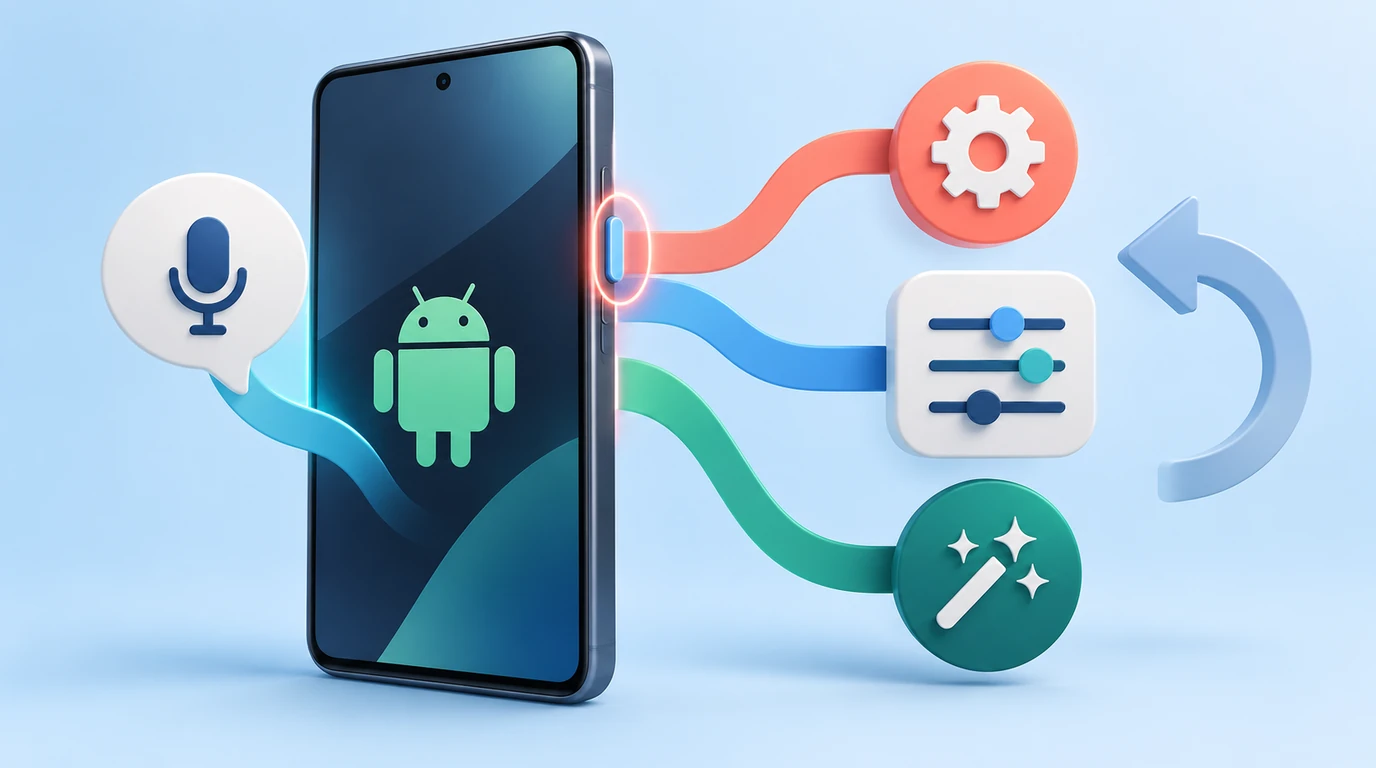
- Choose by job: retain Bixby for Samsung-specific tasks, consider Gemini for eligible Google assistant use, Voice Access for supported-language screen control, or FoneClaw for its own app-based tools.
- The default digital assistant, Side button assignment, and wake phrase are separate settings. Changing one does not automatically change the others.
- Check actual language and account eligibility. Bixby's Polish, Thai, and Vietnamese rollout is staged; Voice Access supports commands in seven specified languages.
- Record your original settings, verify one reversible supported action, and restore each activation layer independently. Existing Bixby routines do not automatically transfer.
Choose the Bixby Job You Actually Need to Replace
The right Bixby alternative on Android depends on which part of Bixby you want to replace. Gemini can serve as the mobile assistant on eligible setups. Voice Access operates visible Android controls through accessibility commands. FoneClaw provides its own app-based voice entry and supported Android tools. None of those choices automatically transfers Samsung-specific routines or changes every way you launch Bixby.
| Your main job | Route to consider | Important boundary |
|---|---|---|
| Keep a working Samsung-specific command or routine | Retain Bixby for that job | Do not assume another app has the same Samsung privileges |
| Use an eligible Google mobile assistant | Gemini through the Google app's assistant setup | Device, account, country, and language requirements apply |
| Operate visible buttons and screens by voice | Voice Access | Accessibility control in seven supported command languages, not a generative assistant replacement |
| Request supported Android tool actions | FoneClaw through its own app and voice entry | Configured model, enabled tools, permissions, and approval settings determine scope |
Before changing anything, write down two commands you use frequently, how you launch them, their spoken language, and whether they depend on a Bixby Quick Command or Samsung routine. That inventory is more useful than choosing an assistant by name alone.
For a wider feature shortlist, Best Voice Control Apps for Android: Choose by Phone Task compares different jobs. If your concern is Samsung's broader AI capabilities rather than activation settings, see Samsung Galaxy AI vs FoneClaw: One UI 9 Intelligence or Cross-Brand Android Actions?
Check Whether the New Bixby Languages Change Your Decision
A language limitation may no longer require the same workaround. Samsung's October 14, 2026 language announcement adds Polish, Thai, and Vietnamese to Bixby, bringing the announced total to twelve languages. Rollout begins October 14, but device and country dates vary. Check the options actually available on your phone rather than treating the announcement as completed deployment.
The listed coverage includes Chinese for mainland China; English for India, the UK, and the US; French; German; Italian; Japanese; Korean; Polish; Brazilian Portuguese; Spanish for Latin America and Spain; Thai; and Vietnamese. Mainland Chinese coverage does not establish Traditional Chinese or Taiwan eligibility. Not every accent is supported, and Bixby requires a Samsung account and data access.
Hungarian and Malay belong to the separate Galaxy AI expansion announced for the coming weeks, not those three new Bixby languages. Likewise, an English-language guide does not establish feature availability for every English-speaking country. If your actual device now supports the language and Samsung task you need, keeping Bixby may be the least disruptive choice.
Map the Three Independent Activation Settings
A common migration failure is changing the default assistant and expecting the hardware button and wake phrase to follow. Treat them as three independent controls:
| Control | What it decides | What it does not establish |
|---|---|---|
| Default digital assistant | Which eligible app handles the system assistant role | That the Side button or Bixby wake setting changed |
| Side button long press or double press | Which offered function or app that gesture opens | That the opened app is the default assistant or immediately starts listening |
| Wake phrase or in-app microphone | How a particular assistant begins receiving a spoken request | That another assistant's wake phrase now routes to it |
Record the current default app, both Side button assignments, and the wake settings you use. Also identify a working power-off route before altering a long-press action. Menu names vary with device, software, and carrier.
Samsung's default-assistant instructions explicitly distinguish changing the default from disabling Bixby or replacing a Side button assignment already set to Bixby. “Hi Bixby” does not become a Gemini command, and opening FoneClaw does not establish a new system wake phrase. Change and check one layer at a time so an unexpected result has a clear cause.
Switch the Eligible Default Assistant to Gemini
For Gemini to act as the primary mobile assistant, Google's Android assistant setup guidance requires the Google app to be the default digital assistant. The system selection may therefore say Google, not Gemini. Choosing Gemini within the eligible Google or Gemini setup is a separate part of that configuration.
- Record the current default assistant before changing it.
- Open Settings, then Apps, then Choose default apps.
- Open Digital assistant app and, where shown, the Digital assistant app selection inside it.
- Select Google if it is available for the intended setup, and confirm with OK where offered.
- Complete the eligible Gemini setup and verify the selected account.
Follow your device's actual labels if they differ. Account, device, language, and country eligibility still apply; work or school accounts can have different quick-voice conditions. A missing option is a reason to check eligibility, not to assume a hidden setting or force an unsupported configuration.
Try the supported touch activation offered by your phone first. Then assess hands-free access separately: Hey Google and Voice Match need their own supported configuration. An in-app microphone working does not prove that wake detection works.
Finally, distinguish opening Gemini from completing a phone action. A conversational response confirms neither every system capability nor migration of Bixby commands. Do not assume Google Assistant remains available as a fallback on every current device or account.
Set the Side Button Separately
If holding the button still opens Bixby, inspect the button assignment rather than repeating the default-app change. Samsung's Side button customization guide uses Settings, Advanced features, then Side button. Choose Long press or Double press and select an offered function or app.
The guide describes supported models with Gemini on long press and Camera on double press, but those defaults are not universal. Older devices, regional builds, and other software versions may expose different choices. The guide's update date also does not make these settings a new October 2026 launch.
Where a gear icon offers an in-app shortcut, use only the options actually shown. If Double press provides Open app and FoneClaw appears in its list, you can select it as an app-launch route. That only opens FoneClaw: it does not register FoneClaw as the default assistant, begin voice capture, or run tools automatically. Use the app's own available voice entry afterward.
Before leaving settings, confirm how you will power off the device. If your Quick panel has a power control, make sure you can reach it; otherwise, retain the documented power-off method for your model. Check long press and double press separately and note what each actually opens. There is no need to issue a private or consequential command merely to verify a button assignment.
Use Voice Access and FoneClaw Through Their Own Entries
Voice Access is useful when your goal is operating visible Android controls. Google's Voice Access setup instructions list command support in English, Spanish, German, Italian, French, Portuguese, and Japanese. Other interface or article languages do not establish additional command-language support.
In Voice Access app version 17.0 and later, the Accessibility Voice Access shortcut must be on. This is the app version, not Android 17. Offered shortcut methods can include a floating button, navigation control, volume keys, or an accessibility gesture. The floating button starts and stops listening; removing all shortcuts turns Voice Access off.
Older app versions use the Use Voice Access setting, with a shortcut optional. Keep service enablement distinct from starting or stopping a listening session. Depending on your setup, you can start through the configured shortcut, the notification's Touch to start entry, the app, or “Hey Google, start Voice Access.” Use the actual shortcut or notification control to stop listening. Do not assume universal lock-screen operation or continuous listening. Speech is primarily processed on-device, but Google processing can apply depending on configuration and language.
FoneClaw follows a different route. Open our app and use its available voice entry with a compatible configured model, enabled supported tools, and actual permissions. Our FoneClaw Features page describes these phone-tool capabilities. We offer a free default model and optional BYOK; neither establishes that every model supports every tool.
Approval follows global settings and per-tool overrides, not an always-confirm rule. For a deliberately saved shortcut, review updated actions and parameters before saving and running it. This is not Bixby routine conversion. We do not claim Android default-assistant registration, a “Hi FoneClaw” wake engine, Samsung private-privilege parity, or wholly offline processing.
Verify a Reversible Task Before Migrating Routines
Use this proposed reader check before rebuilding familiar commands. It is based on supported capabilities, not a test we performed. Choose a quiet, unlocked-phone setting where a small media-volume change will not interrupt anything important.
- Record the starting state. Note the activation route being checked and the original media-volume level. Keep the original default and button assignments available for rollback.
- Verify entry only. Open the chosen assistant or app through the intended gesture, shortcut, or in-app entry. Record what opened.
- Request one supported change. Where the chosen route supports it, ask to lower media volume by one system step. Do not assume identical command support across all alternatives.
- Inspect the actual result. Manually check the media-volume control, not ringtone volume or the assistant's spoken assurance.
- Restore the original level. Use the known original value and verify it manually. Restore any activation setting you do not intend to keep.
FoneClaw's supported tools can read audio-stream levels and ringer mode, adjust a selected stream by one system step, or set a stream percentage. That gives this exercise a bounded action and a visible result. If your chosen route cannot perform it, use manual controls rather than assuming missing support.
For an app-opening check, stop at opening. In FoneClaw, a request only to launch an app should end after a successful launch, without automatically reading its screen. You can inspect it yourself. App opening is not evidence that a task inside it was completed.
If anything fails, identify the layer: activation, request interpretation, account access, tool support, or permission. Inspect current state before repeating the command; do not broaden access to private apps merely to make the check succeed.
Restore Each Setting and Keep Samsung Tasks That Do Not Migrate
Rollback is not one master switch. Return to the default digital-assistant selection and restore the previous option if it remains available. Restore Side button long press and double press separately. Then review the actual Bixby and Google wake preferences you changed. Do not assume restoring one automatically restores the others or that an older Google Assistant option must still exist.
For Voice Access, distinguish stopping listening from turning off the service. Removing all shortcuts on app version 17.0 or later turns it off, so preserve a usable accessibility entry if you still depend on it.
Keep existing Bixby Quick Commands and Samsung routines intact until you have checked each required replacement action. There is no established automatic import into Gemini, Voice Access, or FoneClaw. Rebuild only supported steps, and leave Samsung-specific work with Bixby when the alternative lacks its access.
For a broader comparison of those boundaries, read Google Assistant vs Gemini vs Voice Access vs FoneClaw: Which Android Tool Fits? If you are choosing another eligible default assistant for Google or web-oriented work, Gemini vs Perplexity as Your Android Default Assistant covers that decision. A mixed setup is valid when each route has a clear job and a verified entry.