
YouTube Voice Control on Android: Search, Playback, Fixes
Use YouTube voice control on Android for voice search, visible player controls, microphone fixes, Ask availability, and one saved FoneClaw follow-up.
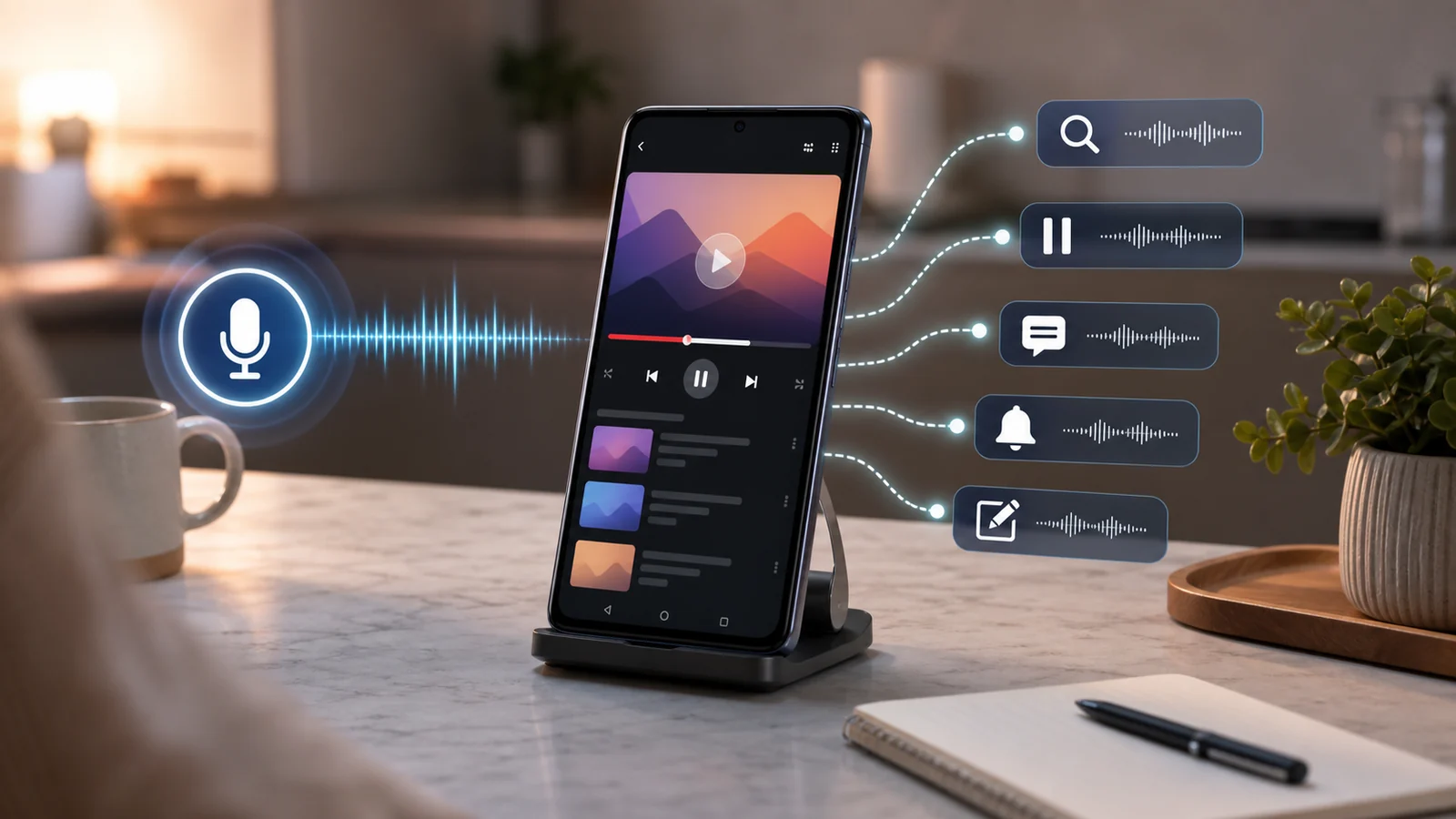
- YouTube voice control on Android works best when you choose the right entry: YouTube microphone for search, Voice Access for visible controls, Ask for eligible questions, and headset controls for supported media actions.
- YouTube voice search starts from Search and Mic, records immediately after permission, and should be checked separately from the search result it returns.
- Voice Access can target visible player controls by label or number in supported spoken languages, while Ask YouTube and background playback follow separate account, region, video, and plan conditions.
- FoneClaw can save one reader-provided video follow-up as a personal Android ToDo, preserving vague or missing dates as Unscheduled instead of inventing a deadline.
Match a Viewing Task to the Correct Entry
Useful YouTube voice control on Android starts by choosing the entry that owns the result you want. Searching for a video, pausing the visible player, asking about an eligible video, and keeping a follow-up are separate tasks. Give each one a clear owner and a visible result to check.
| Task | Best entry | Visible result to check |
|---|---|---|
| Find a video, channel, playlist, or topic | YouTube Search and Mic | The recognized query and returned results |
| Tap a visible player control | Android Voice Access | The current button, label, number overlay, or player state |
| Ask a question in an eligible YouTube surface | Ask in search or on selected watch pages | The answer surface and the video or query it applies to |
| Pause, play, or adjust audio through hardware | Supported headset, speaker, or media controls | The playback state and selected media output |
For example, “find a quiet ten-minute lower-back stretch” belongs in YouTube voice search. First check whether YouTube heard the words, then choose the right result, then verify whether the video is actually playing. If you are cooking, stretching, or taking notes, that step-by-step check is faster than repeating a broad command.
When the goal is broader Android voice setup, use Android Voice Control: Voice Access Setup and Fixes. That guide covers Voice Access service setup, supported command behavior, and system-level checks so this page can stay focused on YouTube search, player controls, Ask, playback, and video follow-ups.
Set Up Voice Search and Separate Recognition From Results
YouTube voice search is the quickest path when the task is “find this video.” Google’s YouTube voice search help describes the Android path: sign in, tap Search, tap Mic, allow microphone access if asked, then speak. Recording starts immediately. Tap Mic to finish, or use the remove or cancel control to leave voice input.
- Open YouTube on Android and sign in to the account you want to use.
- Tap Search.
- Tap Mic.
- Allow microphone access while using the app, or choose the ask-every-time option if that is how you want Android to handle permission.
- Speak a specific query such as “beginner soldering tutorial with safety basics.”
- Check the recognized text and the returned results before playing anything.
If the microphone never starts, fix microphone permission for YouTube and check whether the global microphone control is available on your phone. If the words are recognized but the result is wrong, shorten the query and compare it with a typed search. A typed query separates speech recognition from YouTube ranking, account context, and video availability.
Android voice support also includes some content and navigation requests, such as asking to play music or show subscriptions, with availability varying by language. That documented scope does not create a universal set of player commands. A spoken search can find a video; controlling captions, playback, or a specific button may need Voice Access, a visible control, headset media controls, or manual selection.
Saved voice recordings are a separate setting. Google documents “Include audio recordings” in YouTube History as off by default and separate from other Google audio settings. Turning that setting off controls whether recordings are saved with YouTube History; it does not disable microphone processing for a live voice search you start yourself.
Control the Visible Player Without Guessing Ownership
Playback control depends on what is visible and which voice system is listening. Android Voice Access is the practical route for hands-free interaction with on-screen controls because it can target visible labels and number overlays. Google’s Voice Access command help documents supported spoken languages as English, Spanish, German, Italian, French, Portuguese, and Japanese, with Portuguese and Japanese limited to the top commands. Use one of those supported command languages for Voice Access rather than assuming every translated phrase will work.
Start Voice Access before your hands are busy. Put the video on screen, wake the controls if needed, and use visible targets. If labels are clear, say the label. If the interface is crowded or the label is uncertain, use the number overlay and speak the number shown on the actual control. This is more reliable than memorizing coordinates, because YouTube layout changes with fullscreen mode, orientation, account state, video type, and captions availability.
For a learning video, open the clip, expose the player controls, use Voice Access to select the current pause or play control, and confirm that the icon or playback state changed. If captions are needed, expose the caption control or settings control that is currently visible and select it. Captions still depend on what the video provides, so the visible setting and resulting caption track are the items to verify.
For cooking, prepare the clip before your hands are wet. Queue the recipe, check media volume, confirm the speaker or earbuds are the active output, and keep the phone where the screen can be glanced at. Headset gestures can be useful for play, pause, or skip, but exact behavior depends on the device and manufacturer. Use the controls you have already checked rather than assuming every headset button maps to the same YouTube action.
If the microphone seems broken only during playback, pause competing background audio and bring the listening entry back into focus. A loud player, a locked phone, or a hidden control can look like a voice failure even when the microphone itself works.
Distinguish Conversational Search From Video Questions
Ask YouTube is a separate path from ordinary voice search and visible player control. In the official YouTube experiments thread, the August 12, 2026 update says the conversational search experiment expanded to mobile. In that experiment, eligible signed-in users can tap Ask in the YouTube search bar and enter a question. The described search experiment is for signed-in users 13 and older, in English, in the United States, across desktop, mobile, and TV.
That is not the same as pressing the YouTube Mic button. The same experiment thread describes a TV remote microphone route separately in an earlier update, but that does not establish the Android microphone as an Ask entry. On Android, YouTube Mic, search-bar Ask, watch-page Ask, Voice Access, and hardware playback controls each have their own path.
Current Ask YouTube help also describes Ask on selected watch pages, where eligible signed-in viewers can ask questions about a video. That watch-page Ask experience depends on selected videos, regions, and languages. Its current language coverage is broader than Voice Access command support, including Simplified and Traditional Chinese among other languages, but region, account, and video eligibility still decide whether it appears.
If Ask appears on one video but not another, treat that as a surface-specific availability signal. The visible Ask entry belongs to the selected YouTube experience, not to the whole Android speech system. Use Ask for eligible questions, then use the player, Voice Access, or another Android workflow for the action that follows.
Use the Failed Result to Choose the Next Check
When a YouTube voice attempt fails, identify the layer that failed before changing settings. The issue may be listening, recognition, search, visible control selection, audio output, or background playback.
| What failed | Likely next check | Better first recovery |
|---|---|---|
| No recording starts | YouTube microphone permission, Android microphone access, and the active app | Open YouTube, tap Search, tap Mic, and grant the needed permission |
| Words are wrong | Speech recognition and query length | Use a shorter phrase, then compare the same query typed into YouTube |
| Wrong video appears | Query specificity and account context | Add creator name, topic, format, or duration before choosing a result |
| Wrong player control changes | Current labels, number overlay, and visible player state | Expose controls, use current Voice Access numbers, and verify the icon state |
| Headset is connected but silent | Selected media output and media volume | Play the same video manually, then check speaker, earbuds, and volume route |
| Playback stops with screen off | Background play settings and membership scope | Check YouTube background playback settings and current plan coverage |
For wrong search results, test with one known video. Search for the exact title or creator, check whether the typed result lands correctly, then return to voice. If typing works and speaking does not, refine the spoken phrase. If neither works, look at result availability, account context, region, or YouTube search ranking before treating the microphone as the problem.
For background playback, keep it separate from voice recognition. Google’s YouTube background play help describes screen-off audio for eligible signed-in mobile app memberships and settings such as Always on, Off, and Headphones or external speakers. A working microphone or headset button does not grant background playback. Current Premium Lite help says Premium Lite includes background play for most videos while excluding Shorts and music content, so do not assume only the full Premium plan can ever play audio in the background.
For visible controls, return to what is on screen. If the caption button is absent, the video, player mode, or current settings may not expose it. If play or pause does not change, check whether another audio app has focus. Fix one variable, replay a short part of the video, and stop once the result is visible.
Keep One Useful Follow-Up From a Video With FoneClaw
Many YouTube sessions create one useful next step: buy a replacement filter, rewatch a tutorial, compare a tool, practice one exercise, or save a creator reference. In FoneClaw, the clean workflow is to provide the selected title, link, or action and ask us to save it as a personal ToDo.
A practical request might be: Save “rewatch the router bit safety section from this woodworking video” as a personal ToDo. If no precise date is included, FoneClaw keeps the item in Unscheduled and preserves the useful wording. If you later say “move it to Saturday,” FoneClaw can update the ToDo with that clear date. A simple ToDo stays untimed unless you provide a time, and content-only edits keep the existing date.
FoneClaw supports voice input, a free default model, optional compatible model configuration, visible task progress, and Android tool actions that run under current permissions and approval policy. Around YouTube, the best fit is a selected follow-up you can verify: the ToDo appears in the right place, with the right title, note, and date handling.
For broader personal note and task organization, AI Voice Memos for Android: Notes and Reminders covers FoneClaw memo workflows in more depth. If your next step is a file-oriented YouTube workflow rather than a reminder or note, use FoneClaw YouTube Downloader for Android: Video or Audio. You can also review current FoneClaw capability areas on FoneClaw Features and installation options on FoneClaw Download.
Try One Viewing Sequence and Stop at a Verified Result
Do one short check before relying on YouTube voice control during a real task. Pick one video, one listening entry, one action, and one result. For search, open YouTube, tap Search, tap Mic, speak a specific query, and confirm the returned results. For playback, start Voice Access in a supported spoken language, expose the player controls, select the visible play or pause control, and verify the player state.
If you plan to cook, work out, study, or commute, prepare the queue and audio route first. Check captions if you need them. Test headset controls if you want screen-free media control. If there is a follow-up worth keeping, save the selected item in FoneClaw and verify the ToDo. The goal is fewer taps when the result can be checked quickly.