
Android Voice Control for Commuters: Routes, Messages, and Follow-Ups
Use Android voice control for commute planning, transit route checks, seated-passenger messages, reminders, and FoneClaw-supported phone actions.
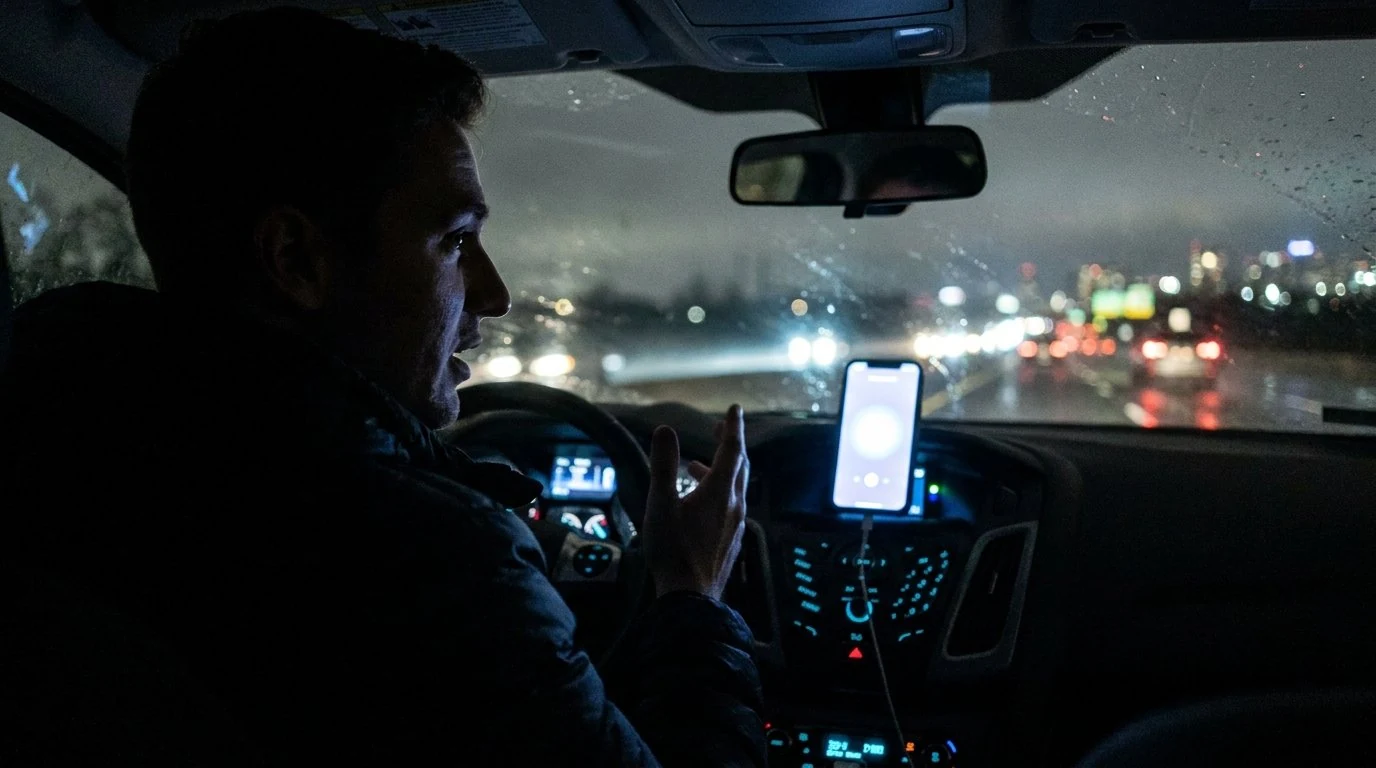
- Use phone tasks before departure or while safely seated as a passenger; do not debug screens while driving, crossing, boarding, or moving through crowded areas.
- Prepare transit routes in Maps by checking destination, Directions, Transit, route details, date, time, station direction, and whether departures are live or scheduled.
- Message drafts should be reviewed in the correct thread before sending; text input fills a field but does not send by itself.
- FoneClaw can help with supported Android phone actions such as opening a map route, preparing a visible message draft, setting a concrete-time alarm, or saving a personal follow-up.
Choose the Right Moment for a Phone Task
Android voice control for commuters works best when the phone task matches the moment. Before departure, you can check routes, calendar details, headphones, messages, and reminders. While seated as a passenger, you can review a short draft or save a follow-up. While walking, boarding, using stairs, crossing streets, cycling, or driving, the safer choice is to defer screen work.
The National Highway Traffic Safety Administration’s distracted driving guidance explains that phone conversation, texting, and manipulating navigation or media can distract from driving. Hands-free does not mean attention-free. Treat complex phone tasks as something to prepare before departure or review while safely parked, seated as a passenger, or away from movement.
| Commute moment | Useful phone task | Defer |
|---|---|---|
| Before leaving | Check route, transit time, calendar location, headphones, and message drafts. | Nothing that needs rushing once you start moving. |
| Seated passenger | Review a short message draft, save a to-do, check route details. | Private readouts on crowded transit unless you can review quietly. |
| Walking or platform | Brief audio or route glance only when stationary and clear of crowds. | Screen debugging, long dictation, account changes. |
| Driving | Use native car voice routes where supported. | Phone-agent screen tasks, typing, app troubleshooting. |
For general Android voice setup, Android Voice Control: Voice Access Setup and Fixes covers the broader phone configuration.
Prepare and Verify the Route Before Leaving
A reliable commute starts before the front door. For a home-to-office transit trip, open Maps, enter the office or station destination, tap Directions, choose Transit, and inspect the suggested routes. Google’s Maps transit departures help explains that users can enter a destination, choose Directions, select Transit, review routes and times, and tap route details. Some stations show real-time departures; others show scheduled timetables.
Check the date and departure time before trusting the route. Then verify the station entrance, direction, transfer point, and final walking segment. If the departure you planned to take is missed, inspect the actual alternate departure in Maps or your transit app rather than relying on an old notification or a cached summary.
FoneClaw can help with the map handoff when the inputs are explicit. A useful request is: “Open a transit route to 225 Market Street,” or “Open walking directions to Central Station.” FoneClaw can open an external map route for the supplied destination and travel mode, but the map app owns route estimates, live transit status, and traffic conditions. The user should check the destination, route mode, and current route in the map app.
Calendar can help if the appointment address is already saved. FoneClaw can retrieve actual Android calendar events for a concrete time range, such as today from 7:00 AM to 10:00 AM, but calendar access does not infer disruptions, platform changes, or live service alerts. If you need current transit status, verify it in Maps, the transit provider app, station signs, or official service messages.
Send an Update Only After Reviewing the Draft
Once you are seated as a passenger and can review the screen, a short update can be useful. Open the correct conversation first. Then use Gboard dictation or a supported FoneClaw text action to prepare only the message content. Google’s Gboard voice typing help explains that voice typing enters text into the selected editable field; it does not choose the recipient or send the message.
A practical draft is: “I’m running 10 minutes late and will message when I arrive.” Treat the timing as user-provided unless you have verified it in the route app. Review the recipient, the exact text, and the thread before sending. If you do send it, verify the actual thread state afterward instead of assuming the draft was delivered.
FoneClaw can help where the current Android screen supports it: open a supported app, read the accessible visible screen, and place text into an identified editable field. Text input does not press Send or Enter. A separate requested selection depends on the current visible control and should be verified. For the detailed recipient and send-review pattern, Hands-Free Texting on Android and Galaxy: Summarize, Draft, Review is the better companion guide.
On crowded transit, keep privacy in mind. Avoid reading private messages aloud. Configured online models may process supplied context, so share only the route or contact details needed for the task.
Check Reminders and Recover from Failed Commands
Arrival follow-ups need precise wording. “After I arrive” is not a geofence trigger. A personal To-do Center follow-up without a concrete date remains Unscheduled, and you should verify the saved item. A concrete Clock alarm time can remind you to check the route manually, but it does not track station arrival or guarantee a notification at the correct platform.
If you want a fallback before arrival, use a fixed time: “Set an alarm for 8:10 AM labeled check transfer,” or “Save a to-do: ask reception for the visitor badge.” That keeps the result verifiable. Cached local notifications, SMS, and calendar summaries can help with a brief, but they are not live transit feeds; check recency and the actual provider when timing matters. For a broader approach to cached alert review and follow-up, AI Notification Summary on Android: Prioritize Alerts and Follow Up covers notification triage in more detail.
| Symptom | Next step | Result to verify |
|---|---|---|
| Headset command fails | Check Bluetooth route, microphone input, and noise before repeating. | The phone hears a short test command. |
| Phone is locked | Unlock normally and open the needed app before continuing. | The route, thread, or field is visible. |
| Network drops | Use already visible information cautiously and verify at station signs or the provider app when service returns. | Route or departure details are current enough to act on. |
| Wrong destination opens | Stop and inspect the destination, travel mode, and route details before moving. | The intended place and mode are selected. |
| Old alert appears | Check timestamp and source before acting. | The update is current or replaced by a fresh provider check. |
The current FoneClaw Features page describes supported Android task handling. Configured global and per-tool approvals govern consequential actions, so the approval behavior depends on the action and settings rather than a universal prompt rule.
Keep Car Controls Separate from Phone-Agent Tasks
Driving belongs in a separate lane. Google’s Android Auto voice help describes compatible-car routes for supported calls, messages, directions, and music through Gemini or Google Assistant, with availability depending on assistant, device, language, and territory. Set that up before departure.
FoneClaw does not provide Android Auto or car-control integration here. Use native car voice controls where supported, and keep phone-agent screen tasks for before driving, after safely parking, or when seated as a passenger. For driving-specific habits, Voice Commands While Driving: Safer Android Hands-Free Guide covers that separate scenario.
The commuter rule is simple: prepare the route before you move, review messages when seated as a passenger or safely parked as the driver, use concrete-time reminders instead of assumed arrival triggers, and verify results in the real app that performed the action.